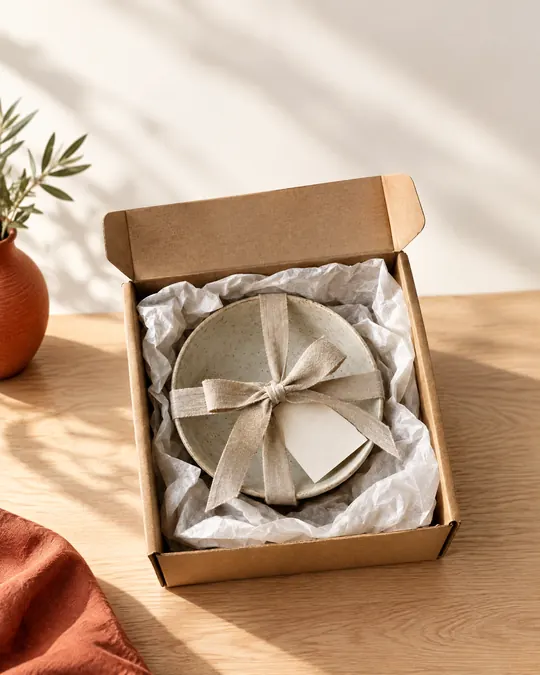
Social Media Ad Image (Instagram, Facebook)
Social media posts and ads With your own photoPortrait 4:5 2 tries
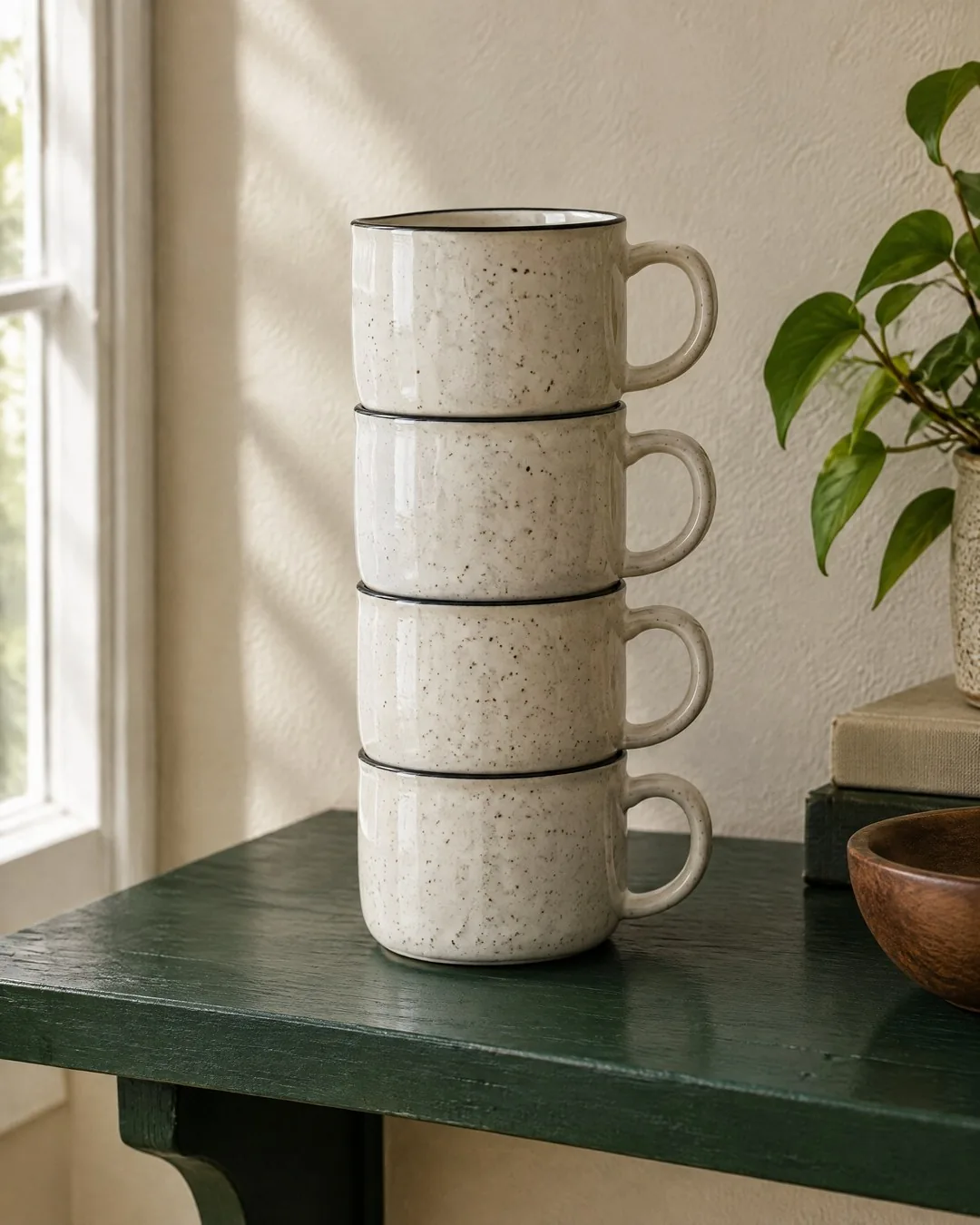
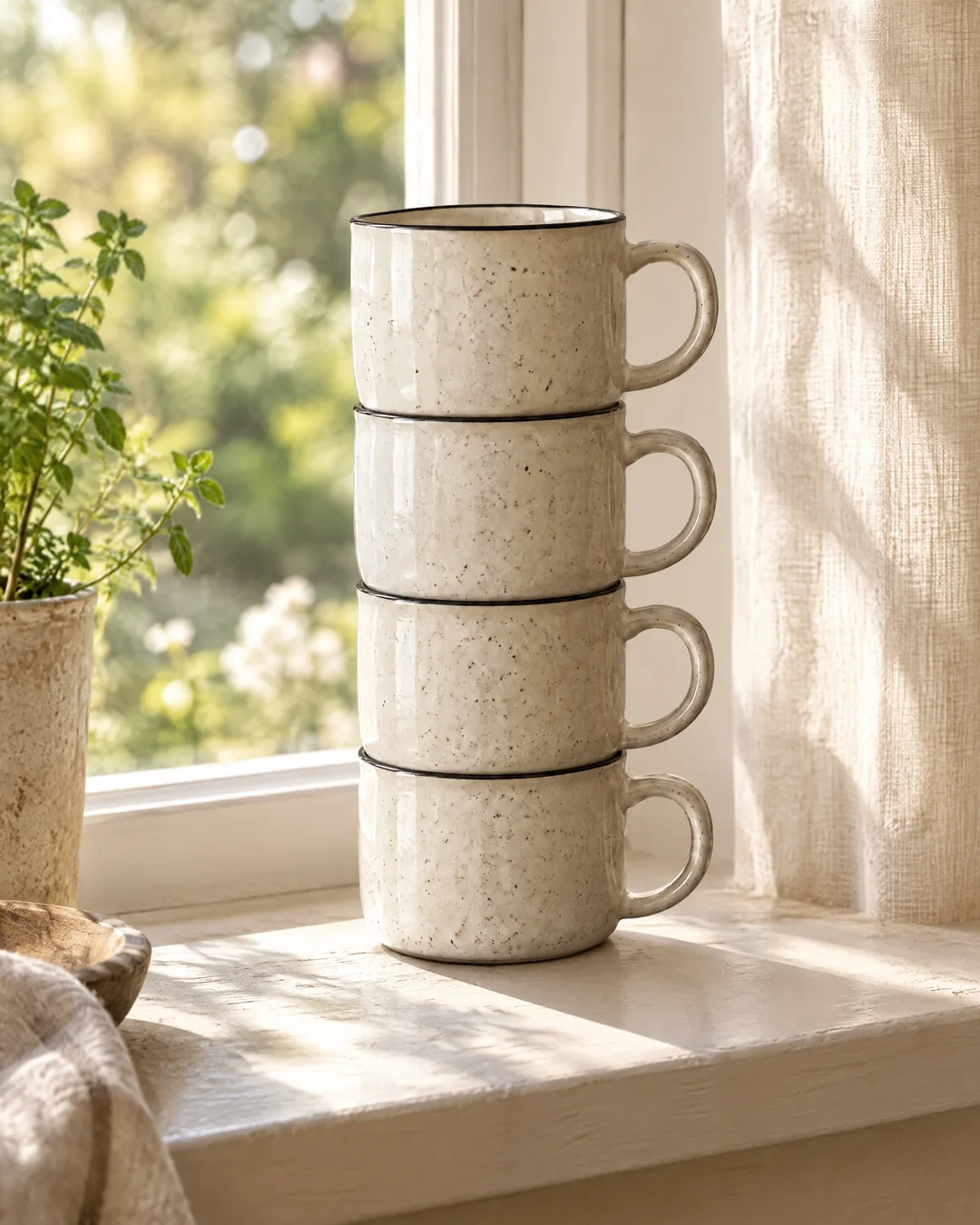
Change only the background of this product photo. Keep the product exactly the same: [the stack of four speckled ceramic mugs] - same shape, same number of items, same colors, glaze, speckles, handles and proportions; do not redraw or restyle it. New background: [a sunlit kitchen windowsill with a soft linen curtain and a blurred garden outside]. Match the lighting direction and color temperature of the product to the new scene and add a realistic contact shadow under the product. Photorealistic, no text, no logos.Replace the gold [bracketed] parts to match your own product, space or brand.
The prompt tells the model not to change these. Check the result anyway: these are the parts that break most often.
If the product itself has changed (count, color, handle, logo, label), don't use it; generate it again with a new attempt.
For products such as food or cosmetics, don't publish it if the scene shows the product differently from what it is (ingredients it doesn't contain, a size it doesn't have).
Aims to change only the background of a product photo: the product is meant to stay the same while the scene changes. The model may redraw the product; check its shape, count and color before using it. A quick way to show a product in different settings for social media and e-commerce.
Replace two parts: the product description (the more detail you write, the less the model changes; always include the count) and the new background. If the background's lighting is similar to the light the product was shot in, the result looks more realistic.
The example was generated with GPT Image 2.5 via Higgsfield.
What happened across attempts: On the first attempt, the four mugs, the speckles and the black rims were preserved. The handles got slightly thinner and the color turned a little grayer. Before using it in a sales image, zoom in and compare it with the real product. The example prompt did not state the count; "four" was then added to the template.
Even with the same prompt and the same settings, you won't get an identical result: models generate something different every time. The example shows what kind of result this prompt produces; it is not a guarantee.


We use cookies to improve the site and measure advertising performance. Analytics and advertising cookies run only if you accept them. Details are in our Privacy Policy and Data Protection Notice.