Visuals in Turkish · the full text is on this page
Tools · Social Media
How to Use the Prompt Library and Prompt Builder: Copy a Ready-Made Prompt, Fill In the Blanks
I wrote this, I got this. 15 ready-made image and video prompts, each with its example and production record; fill them in Turkish without knowing English.
Short answer
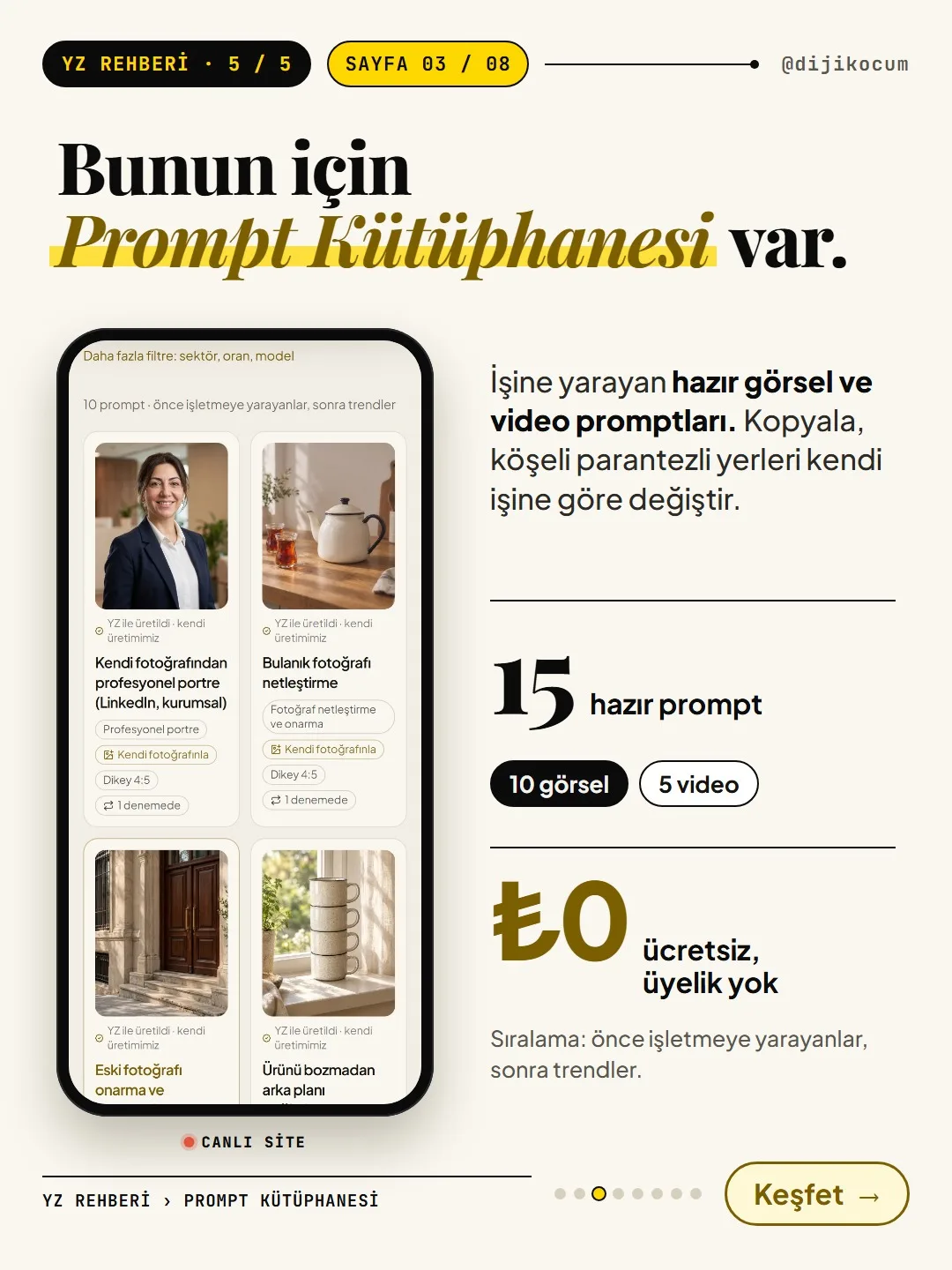
The Prompt Library is a free section of DijiKoçum's AI Guide offering 15 ready-made prompts that are useful for businesses (10 image, 5 video). Each prompt comes with a before/after example and a note on which model produced it and in how many attempts. You copy the prompt and replace the square brackets; if you don't want to work in English, you fill it in Turkish in the Prompt Builder. The result won't come out exactly the same.
9 steps · 7 min read · · Turan Yasin Salcı
Step by step · 9 steps
0/9 checked · saved in this browser only
Open the library and go to the image or video prompts.
Go to dijikocum.com/yapay-zeka/prompt. It's free, no sign-up.
The page has two doors: Image Prompts (10 prompts: photo sharpening, background replacement, combining photos, dressing a model, portraits, logos and posters) and Video Prompts (5 prompts: animating a photo, product video, short ad, venue tour). Tap the one for the job you want to do. The counts are as of November 1, 2026; the list is ordered "business-useful first, then trends."
Choose your task under "What for."
The list page has three filter groups:
- What for: e.g. Background replacement, Combining photos, Campaigns and posters, Product photo (for video: Animating a photo, Product video, Promo and ads, ASMR and texture, Venue tour).
- Who it's for: Hotel and spa, Restaurant and café, E-commerce, Service business, Content creator.
- Aspect ratio: Square 1:1, Portrait 4:5, Photo 3:2 (videos are Full vertical 9:16).
The cards show whether it works with your own photo, the aspect ratio and how many attempts the example took. All the example images are the site's own output, and the card has a label saying so.
Tap a prompt: see its before/after example and production record.
From top to bottom, the prompt page has:
- Before · input / After · result: the photo the prompt was given and the result that came out.
- Example prompt: the English text to give the model.
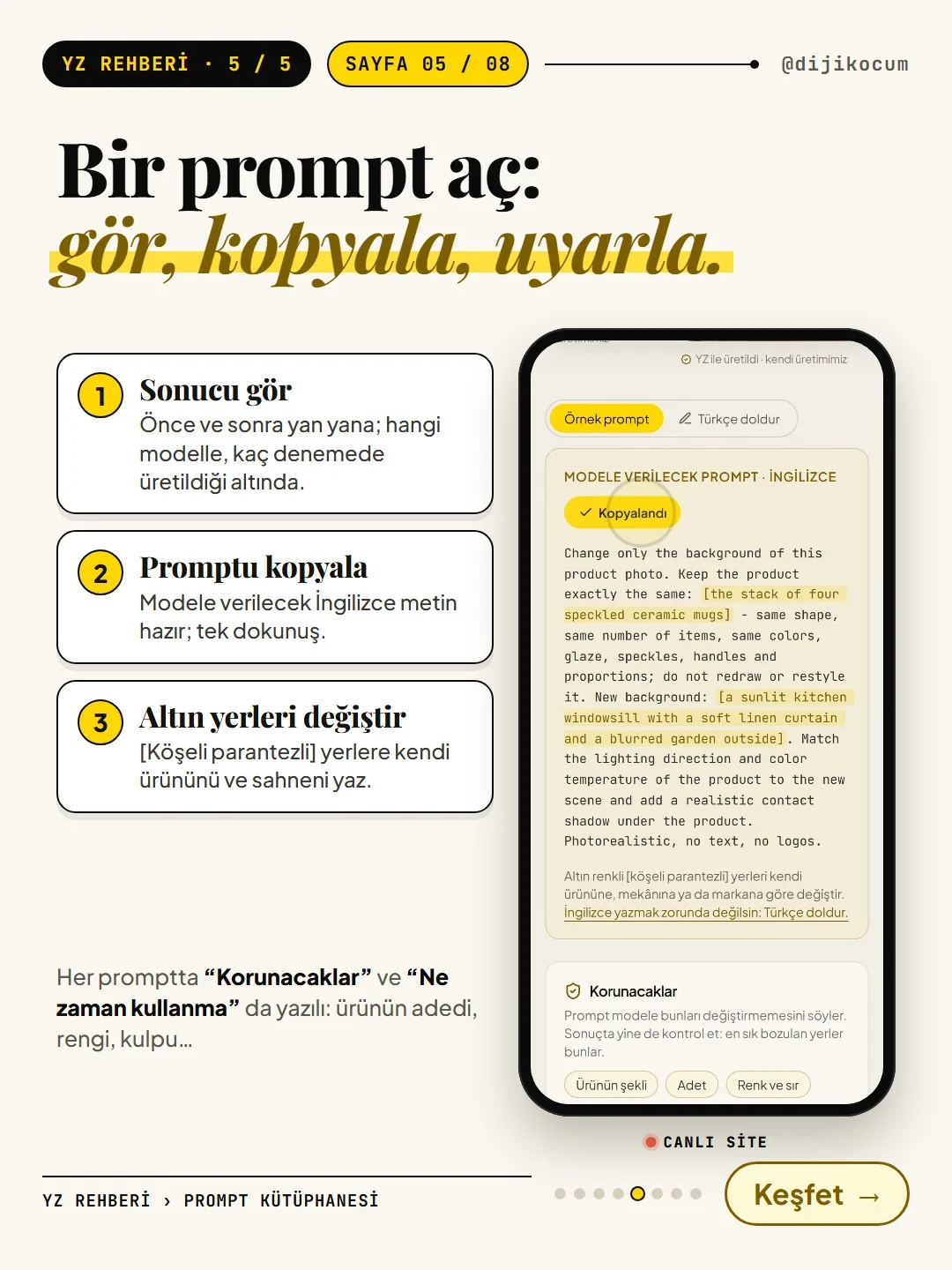
- Keep unchanged: the things the prompt asks the model not to change (e.g. the product's shape, count, color). According to the page's note, these are the things that break most often; check the result anyway.
- When not to use it: situations where the prompt won't help or where the result shouldn't be published.
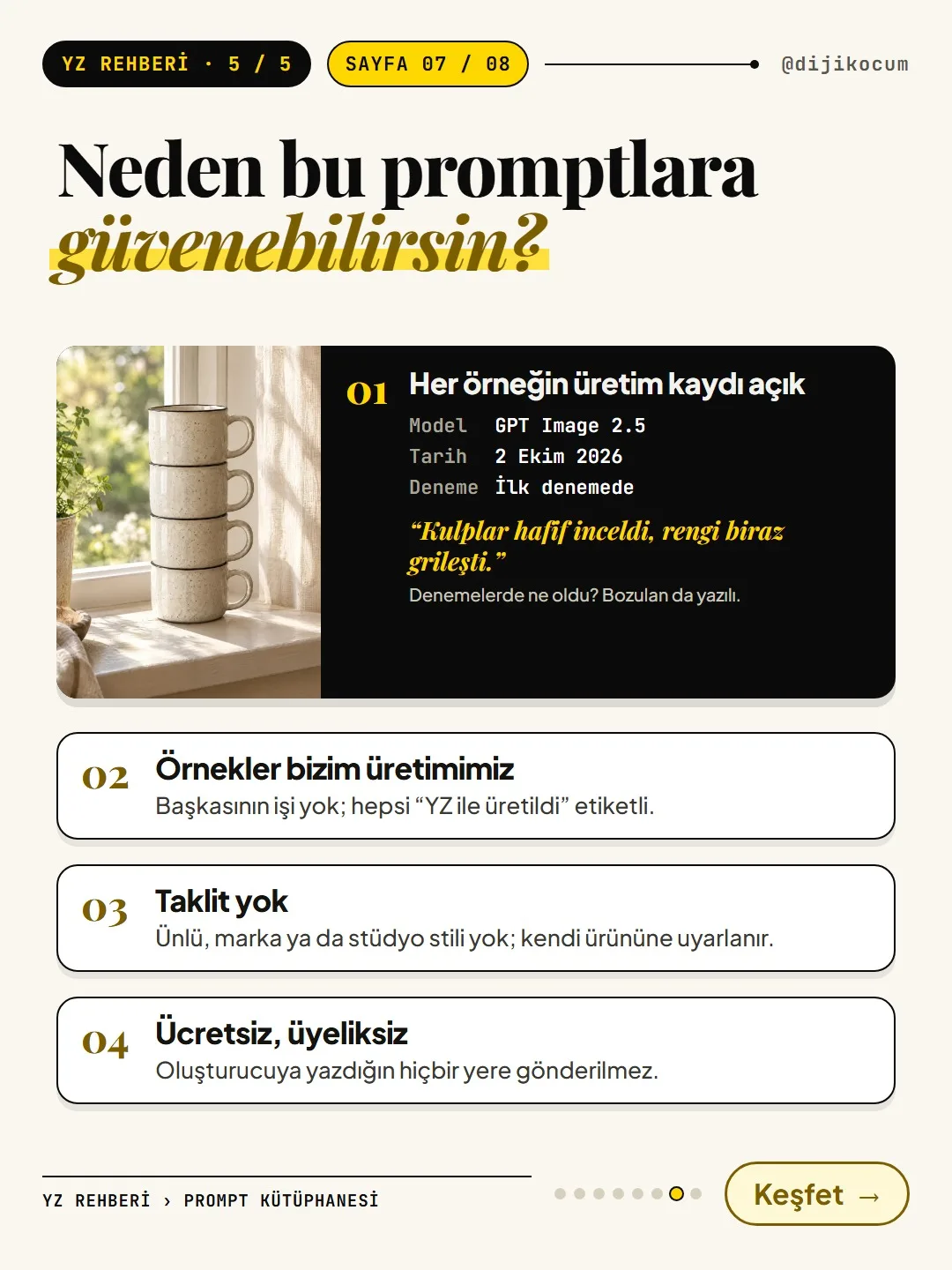
- Production record: the model, production date, which attempt it came from, aspect ratio, quality and a What happened across attempts note.
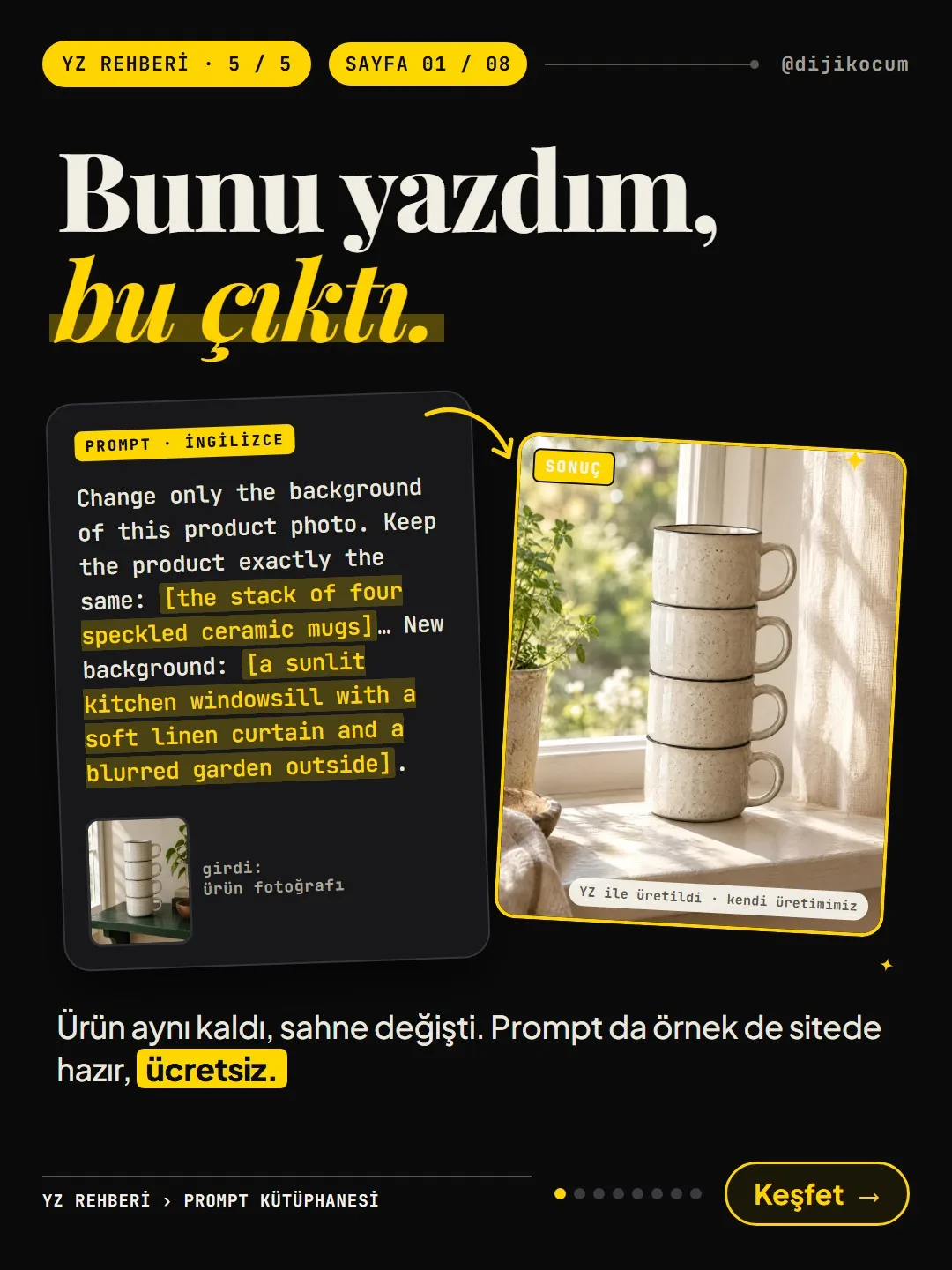
For example, the "Change the background without altering the product" prompt was produced with GPT Image 2.5 on October 2, 2026, on the first attempt; the note says "The handles got slightly thinner and the color turned a bit grayer." In other words, the example isn't a guarantee; it shows what kind of result to expect.
Press "Copy prompt"; replace the gold [square-bracketed] parts to fit your product.
Press the Copy prompt button; the text is copied to your clipboard. The gold [square-bracketed] parts are the ones you fill in: your product, your venue or your brand. Delete the square brackets and what's inside them, and write your own details instead. When describing the product, always write the count; the more detail you give, the less the model improvises.
Example: in the background prompt, you replace
[the stack of four speckled ceramic mugs]with your own product (e.g.two glass jars of homemade fig jam with white lids) and[a sunlit kitchen windowsill ...]with the new scene. Here's the prompt on the site:Change only the background of this product photo. Keep the product exactly the same: [the stack of four speckled ceramic mugs] - same shape, same number of items, same colors, glaze, speckles, handles and proportions; do not redraw or restyle it. New background: [a sunlit kitchen windowsill with a soft linen curtain and a blurred garden outside]. Match the lighting direction and color temperature of the product to the new scene and add a realistic contact shadow under the product. Photorealistic, no text, no logos.If you don't want to write in English, open the Prompt Builder and fill it in Turkish.
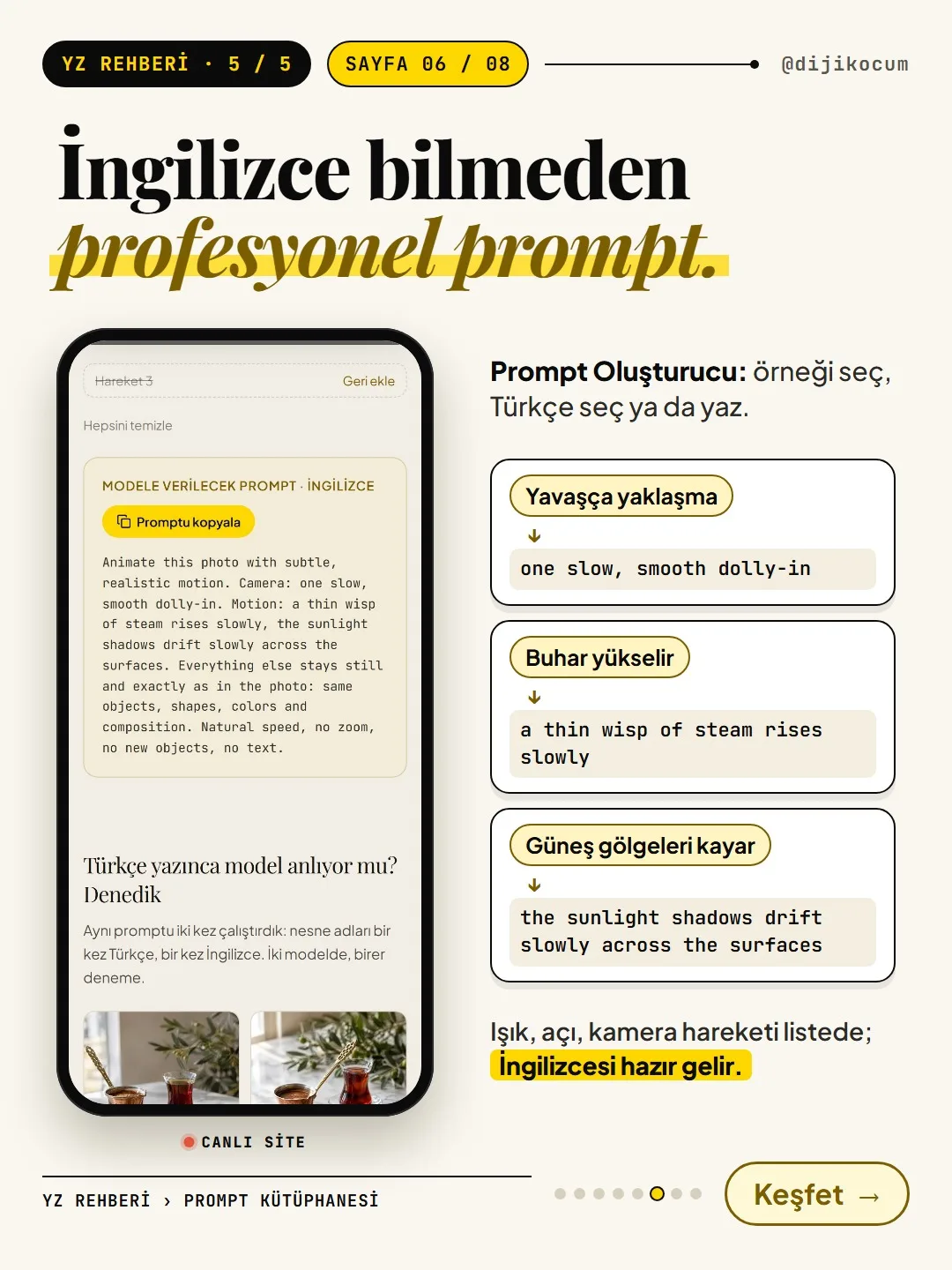
Go to dijikocum.com/yapay-zeka/prompt/olusturucu (every prompt page also has a Fill in the blanks tab, where you can do the same thing).
- 01Pick an example: one of the 15 prompts, or "Image" or "Photo to video" under Or build from scratch.
- 02Fill in the blanks, copy the prompt: write the square-bracketed parts in Turkish. You pick the words that change the result the most, like lighting, camera angle and movement, from a list; the English comes ready. Then copy the prompt to give the model.
What you need to know (from the page):
- Free text you write yourself isn't translated; it's shown in blue, and you get a translation prompt you can give to ChatGPT or Gemini.
- Text that will appear in the image and Turkish speech in the video are never translated; their letters are preserved.
- The builder runs entirely in your browser: what you type isn't sent to a server and isn't saved; it's deleted when you close the page.
- The site wrote object names once in Turkish and once in English and tried them on two models; both models drew the objects written in Turkish (like a copper cezve or a simit) correctly. That's a single trial per language and model; long scene descriptions and video models aren't covered by this trial.
Paste the prompt into an image generator; check the count, color and text in the result.
Paste the prompt into an image-generating tool like ChatGPT or Gemini. If it's a prompt that works with your own product photo (the card says "With your own photo"), add your photo first, then send the prompt. You use video prompts in a video-generating tool.
When the result comes in, check:
- Count: is the number of products the same?
- Color and shape: have the product's color, handle, label or proportions been distorted?
- Text: are the Turkish characters on the poster (c-cedilla, g-breve, dotless i, s-cedilla, u-umlaut, o-umlaut) correct?
Even if you run the same prompt with the same settings, the result won't come out exactly the same. If the product itself has changed, don't use that image, as the site's "When not to use it" note says; generate it again. Before using it for sales, zoom in and compare it with the real product.
Three prompts to get started.
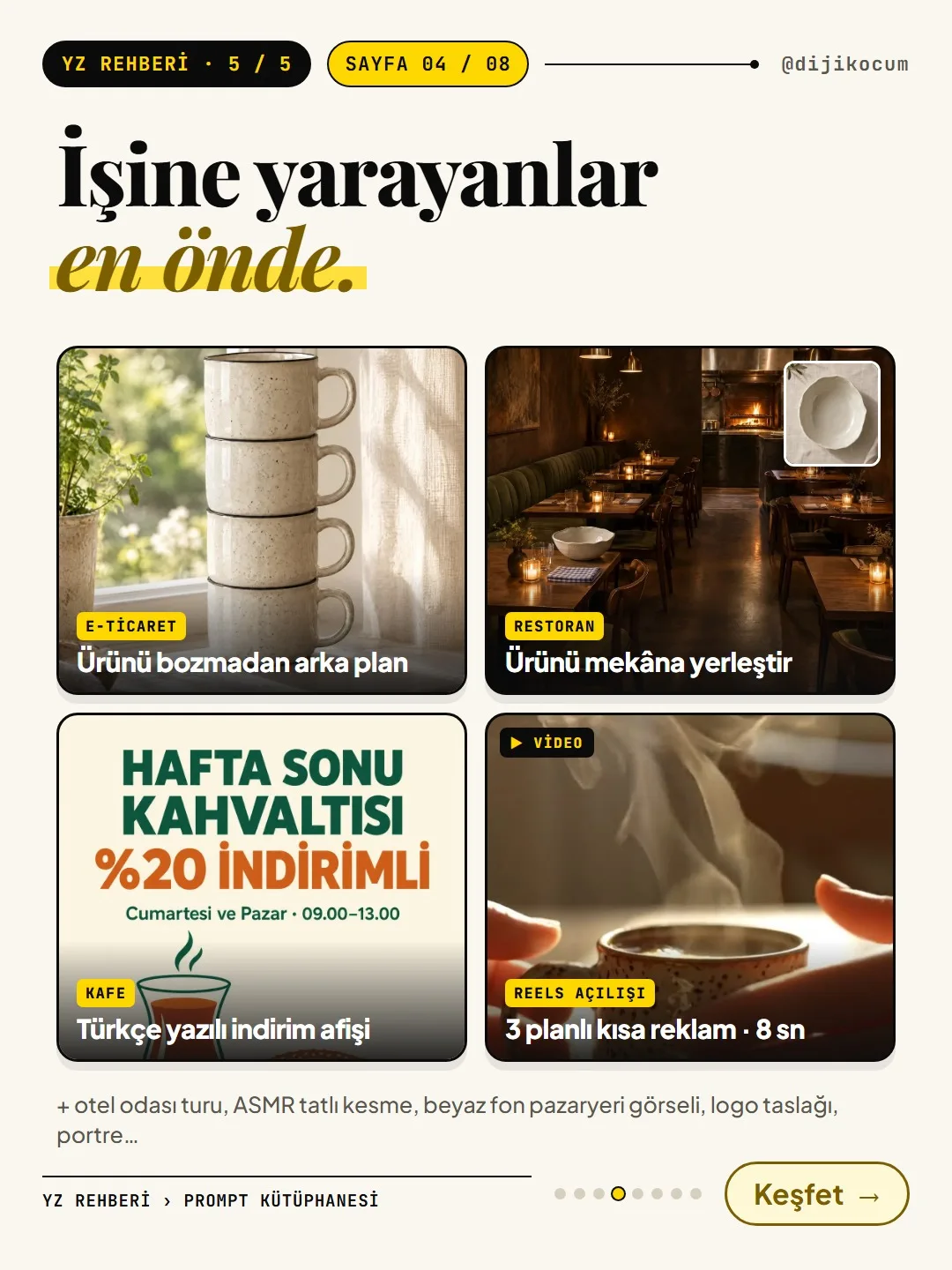
- Product photo: "Change the background without altering the product." Moves the product photo you have into a new scene; check the count and color.
- Café, restaurant: "Discount poster — tested for Turkish characters." A poster prompt tested for whether Turkish characters come out correctly; still read the letters one by one.
- Reels: "3-shot short ad video." A short ad with a timeline; you add sound and text afterward.
All of them are in the Prompt Library, for free.
A few scenarios for your business.
- E-commerce seller: Prepare your main image with the "White-background product image for marketplaces" prompt and your social media image with "Change the background without altering the product." Be careful not to show the product's color or size as different from what it is.
- Restaurant: Use "Combine two photos: place the product in the venue" to put your dish into a photo of your own dining room. If the scene shows the food differently from what it is (ingredients that aren't in it, a size it doesn't really have), don't publish it.
- Boutique hotel or spa: Use "Hotel room promo video: slow push-in toward the window" to create a short video from a room photo; if something that isn't in the photo appears in the video, don't use it.
- Hairdresser or consultant: Use "Professional portrait from your own photo" to prepare a LinkedIn photo. The prompt is for your own photo; don't use it with someone else's face.
What to do if you get stuck?
If you don't know which tool to run the prompt in, go to the Tool Atlas through the Image generation tools and Video generation tools links at the bottom of the prompt pages. If you'll use the image in an ad, read the link to the AI labeling rule on the prompt page.
Free, no sign-up. If you get stuck anywhere, message @dijikocum on Instagram.
How to measure it
Pick one of your products and generate two images: first by saying only "make a nice photo of this product," then with the prompt from the library. Put them side by side and check off the three questions from step 6 (count, color/shape, text) for each. Share the image made with the prompt; a week later, compare its saves and DMs with those of your previous product images.
Sources
- DDijiKoçum AI Guide: Prompt Library (10 image + 5 video prompts)Our own data · checked: November 1, 2026
- DDijiKoçum Prompt Builder (fill in the blanks in Turkish, copy the English prompt)Our own data · checked: November 1, 2026
- DDijiKoçum prompt page: Change the background without altering the product (production record, October 2, 2026)Our own data · checked: November 1, 2026
[A] primary source · [B] industry research · [C] practitioner · [D] our own data
Frequently asked questions
Is the Prompt Library paid?
No, the library and the Prompt Builder are free and don't require sign-up. The image or video tool you run the prompt in has its own free limit and price.
Why are the prompts in English?
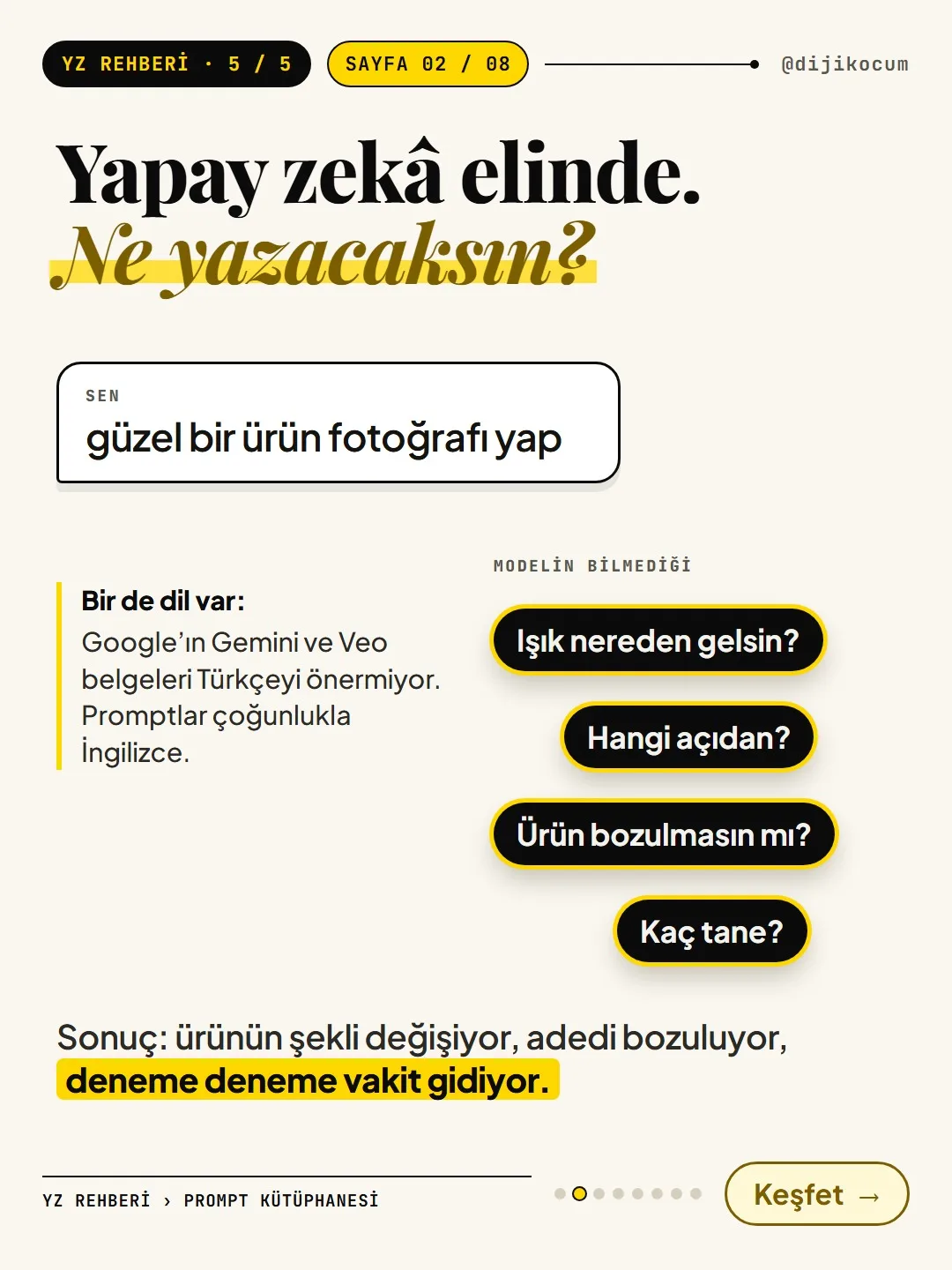
According to the note on the site, Google's Gemini image documentation doesn't list Turkish among the recommended languages, and the Veo documentation states that languages other than English haven't been evaluated. That's why the prompt is in English, with what to change and how explained in Turkish. If you don't want to write in English, use the Prompt Builder.
Will the same prompt give me exactly the same image as the example?
No. Models generate something different every time; the example shows what kind of result the prompt gives, not a guarantee. The "What happened across attempts" note in the production record also shows what can go wrong.
Does what I type into the builder go anywhere?
According to the page, no: the builder runs entirely in your browser, what you type isn't sent to a server and isn't saved; it's deleted when you close the page.
Which tool should I use?
You use image prompts in an image-generating tool like ChatGPT or Gemini, and video prompts in a video-generating tool. The examples on the site were produced with specific models (e.g. GPT Image 2.5); in another tool the result may differ.
Can I ask for the style of a famous brand or person?
The prompts in the library deliberately don't imitate famous people, brands or studio styles; they're written to be adapted to your own product and venue. The portrait prompt is only for your own photo, too.
Next step
Let’s look at your site together.
Free Digital Checkup: a health score for your website, your ads and your visibility in AI search, plus what to fix first. 3 minutes.
More guides
Tools
How to transform product photos with ChatGPT Images 2.5: 20 ready-made image prompts (step by step)
26 steps · 14 min
Tools
5 Free Animation Skills for Claude Code: How to Install Three.js, GSAP, design-dna, LottieFiles and Genjutsu (Step by Step)
16 steps · 9 min
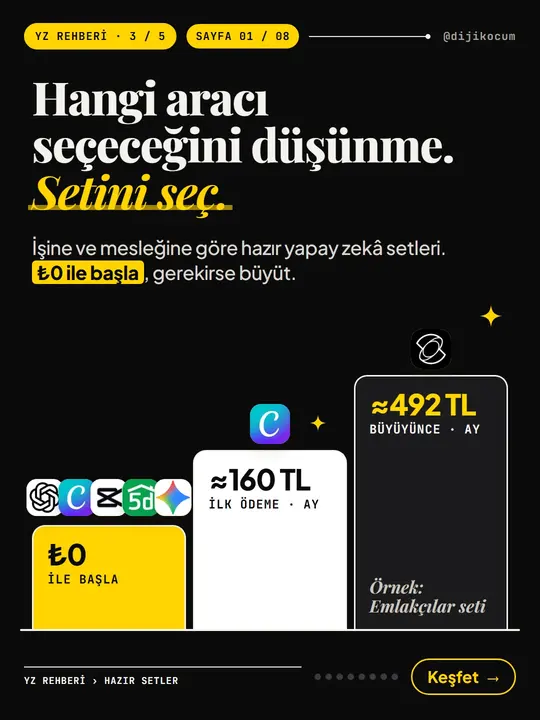
Tools
How to Use the Ready-Made AI Kits: Pick One for Your Profession or Business and Start at $0
9 steps · 6 min