Visuals in Turkish · the full text is on this page
Tools · Social Media
Google Flow Logo Animation: Turn a Photo of Your Shop Into a 6-Second Logo Video (Full Prompt + 3 Examples)
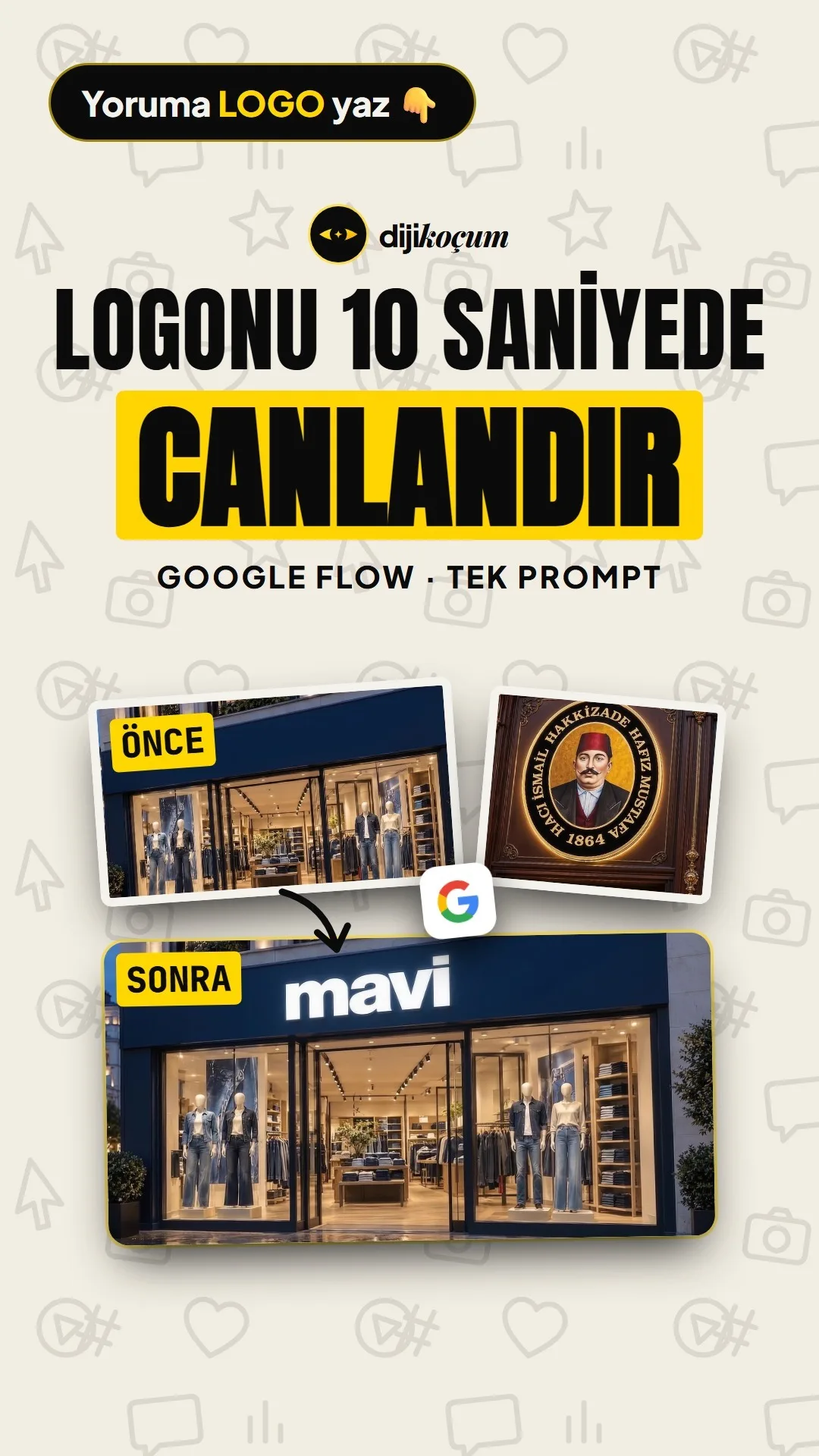
Upload a photo where your logo is visible, paste the prompt and hit Create. The photo stays exactly as it is; only the logo appears in place.
Short answer
Google Flow (labs.google/flow) is Google’s AI video tool. You can give it a photo as an “ingredient” and generate a short video from a written prompt. With this method, the photo stays exactly as it is; only the logo appears in place with an effect that suits its material (acrylic letters extrude, a lit sign switches on, a leather patch gets stamped, embroidery gets stitched). The Turkcell, Hafız Mustafa and Mavi animations in the Reels were produced on October 26, 2026 with this prompt, using the Omni Flash model, 6 seconds and a single output; each one used about 10 Flow credits. The examples are only meant to demonstrate the method; there is no partnership with these brands. This page has the full prompt, effect sentences by material, camera options, three filled-in examples for Turkish businesses and common mistakes.
12 steps · 6 min read · · Turan Yasin Salcı
Step by step · 12 steps
0/12 checked · saved in this browser only
Pick the right photo.
Use a photo where the logo appears sharp and large: a sign, a shop window, a product label, a box, a glass door. The logo should cover at least a tenth of the frame, with no people or objects in front of it. In a blurry or dark photo, or one where the logo is small, Flow may distort the letters.
Open Google Flow.
Go to labs.google/flow with your Google account and start a new project. Flow runs on credits; the number of credits depends on your Google plan.
Set up the options.
In the bottom box: Agent off, type Video, source Ingredients, aspect ratio 16:9 (9:16 if you want a vertical video), model Omni Flash, quality 720p, length 6 s, count x1. With these settings, one video cost about 10 credits (October 26, 2026).
Upload the photo and add it to the prompt.
Upload the photo with “Upload media.” From the uploaded image’s ⋮ menu, choose “Add to prompt”; the photo appears as a thumbnail next to the prompt box.
Paste the prompt and fill it in.
Copy the prompt below. Fill in the square brackets in English: [LOGO] = a description of the logo (e.g. “the white backlit ‘mavi’ letters on the navy fascia”), [SURFACE] = where the logo sits, [EFFECT] = the sentence from the table in step 6 that matches your material, [CAMERA] = one of the options in step 7.
Create a 6-second logo reveal video from the uploaded reference photo. Keep the exact framing, composition, lighting and every detail of the reference image for the whole clip. The only thing that animates is [LOGO] itself appearing gradually in its exact original place — everything else in the frame (background, surface, lighting) stays fixed and unchanged, like a motion graphics overlay on a still photo. The final frame should look identical to the uploaded reference image. [0:00-0:01] Start with [SURFACE] empty, no [LOGO] present. [CAMERA] begins, a gentle and minimal movement. [0:01-0:04] [LOGO] [EFFECT]. [0:04-0:06] [LOGO] is fully in place, matching the reference image. Camera continues its gentle movement and holds until the end. Negative Prompt: Do not change the camera angle or framing beyond the specified movement. Do not change where [LOGO] sits in the frame. Do not add extra text or objects. Do not distort or misspell the logo. No people moving, no sudden cuts or transitions. No talking, exactly 6 seconds.Effect sentence by material ([EFFECT]).
Choose the effect that matches the logo’s real material; that is what looks natural.
| Logo material | What happens | Write in place of [EFFECT] |
|---|---|---|
| Acrylic / raised letters | The letters pop out from the wall | extrude and pop out from the surface one after another from left to right, casting soft realistic shadows |
| Lit sign, channel letters | The letters light up like neon | flicker on like neon lightbox signage, letter by letter from left to right, then stay steadily lit |
| Backlit panel, medallion | Light spreads from the center | glows into existence: a warm backlight emerges from its center, then the details fade in with a soft glow until crisp |
| Leather patch | A hot stamp is pressed in | is pressed into the leather as if by a hot stamp: the impression appears and deepens, the leather darkens inside the letters |
| Embroidery | It gets stitched with thread | is embroidered stitch by stitch, threads filling the shape until the badge is complete |
| Metal plate | It is engraved and shines | is engraved into the metal line by line, then a soft light sweep passes over it |
| Glass, window lettering | It appears from the fog | appears as if wiped from fogged glass, from left to right, until clear |Choose the camera movement ([CAMERA]).
Keep the movement subtle; too much of it ruins the framing.
- Slight camera zoom-in (slow push-in): the safest for signs and shop windows.
- Slight camera tilt left and right (gentle side to side): medallions, panels above doors.
- Very slight camera zoom-in: leather patches, product close-ups.
- Static camera: if the logo is very small or close to the edge.
Hit Create and download in 1080p.
Press the Create (arrow) button; the video arrives within a few minutes. Choose 1080p when downloading. If you don’t like the result, generate it again with the same prompt or change the [EFFECT] sentence.
Example 1 · Cafe sign (acrylic letters)
A cafe called “Kahve Durağı” has white acrylic letters on a wooden fascia on its storefront.
[LOGO] = the white acrylic "Kahve Durağı" letters on the wooden fascia [SURFACE] = the wooden fascia above the entrance [CAMERA] = Slight camera zoom-in [EFFECT] = extrude and pop out from the wooden fascia one after another from left to right, casting soft realistic shadowsExample 2 · Hair salon lit sign
A hair salon called “Saç Atölyesi” has backlit lettering on its black box sign.
[LOGO] = the backlit "Saç Atölyesi" letters on the black box sign [SURFACE] = the black box sign above the shop window [CAMERA] = Slight camera zoom-in [EFFECT] = flicker on like neon lightbox signage, letter by letter from left to right, then stay steadily litExample 3 · Boutique product label (leather)
A boutique that sells handmade bags has a leather patch with its logo on the bag.
[LOGO] = the brand wordmark debossed into the tan leather patch [SURFACE] = the tan leather patch on the bag [CAMERA] = Very slight camera zoom-in [EFFECT] = is pressed into the leather as if by a hot stamp: the impression appears and deepens, the leather darkens inside the lettersCommon mistakes.
- The logo flashes in the first frame: Flow sometimes puts the original photo in the first frame. When you use the video, trim the first 0.1 seconds.
- The letters are distorted or misspelled: The photo is blurry or the logo is small. Use a sharper photo taken closer to the logo, and write the text exactly, in quotation marks, in the [LOGO] description.
- The camera moves too much: Write “Static camera” in place of [CAMERA], or add “very slight.”
- The background changes, people move: Don’t delete the Negative Prompt line; don’t pick a photo with people in it.
- It uses too many credits: Stay with count x1, 6 s length and Omni Flash; the Veo models cost more.
How to measure it
Using the same photo, post a static image with your logo for one week and a logo-animation video for another week (as a story or Reels). Compare views, watch time and profile visits; use whichever stops people more at the start of your ads.
Sources
- AGoogle FlowPrimary source · checked: October 27, 2026
- BTurkcell store photo: Pivox, Wikimedia Commons (CC BY-SA 4.0)Industry research · checked: October 26, 2026
[A] primary source · [B] industry research · [C] practitioner · [D] our own data
Frequently asked questions
Is Google Flow free?
Flow runs on credits; credits are given based on the plan on your Google account. With this method, a single 6-second video with the Omni Flash model cost about 10 credits (October 26, 2026). You can see the current credit table inside Flow.
Can I animate my logo from scratch?
This prompt is written for a real photo in which the logo is already visible; it keeps the photo and animates only the logo. If you don’t have a photo, first take a sharp photo of the sign or product that carries the logo.
Where can I use the video?
At the start of Reels and TikTok videos, in stories, in the first seconds of an ad, on your website or on an in-store screen. If you’ll use it vertically, choose the 9:16 aspect ratio in Flow.
Next step
Let’s look at your site together.
Free Digital Checkup: a health score for your website, your ads and your visibility in AI search, plus what to fix first. 3 minutes.
More guides

Tools
How to transform product photos with ChatGPT Images 2.5: 20 ready-made image prompts (step by step)
26 steps · 14 min

Tools
5 Free Animation Skills for Claude Code: How to Install Three.js, GSAP, design-dna, LottieFiles and Genjutsu (Step by Step)
16 steps · 9 min
Tools
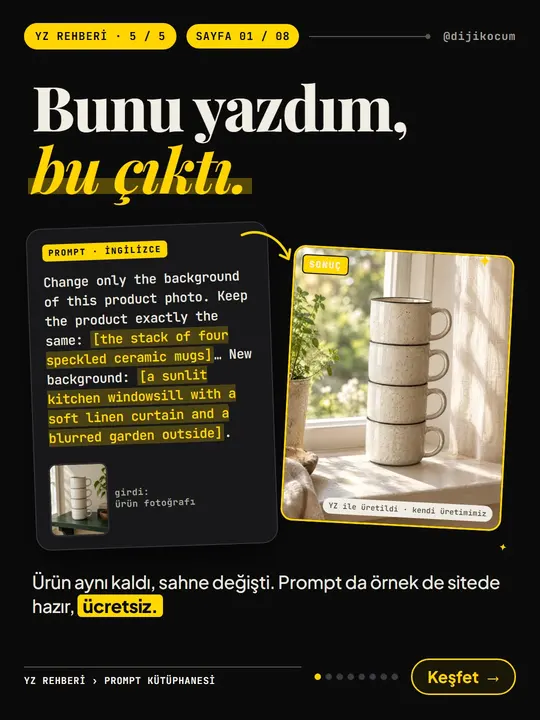
How to Use the Prompt Library and Prompt Builder: Copy a Ready-Made Prompt, Fill In the Blanks
9 steps · 7 min