Visuals in Turkish · the full text is on this page
Tools · Automation
How to use the AI Tool Atlas: filter by task, open the card, try it for free
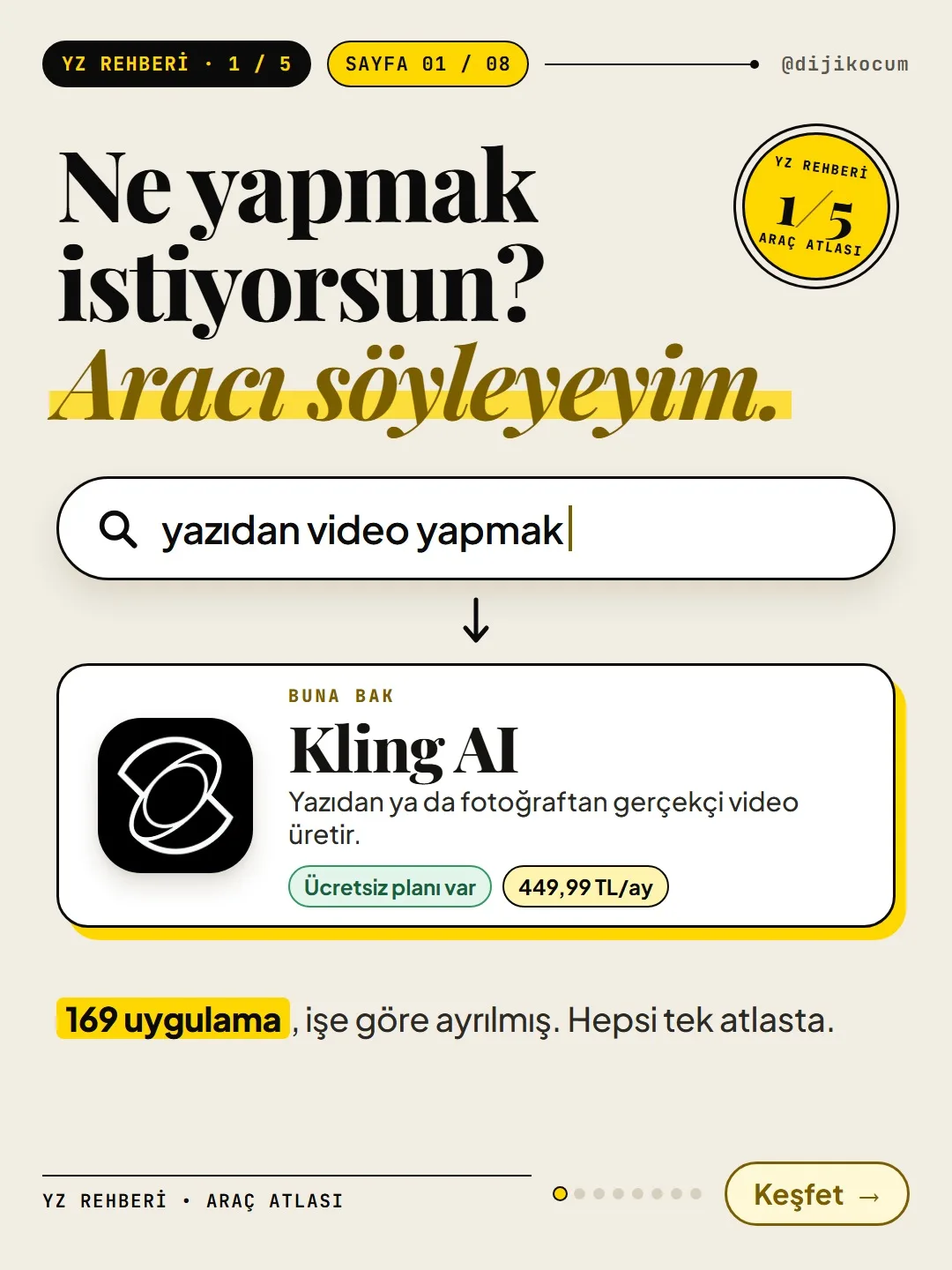
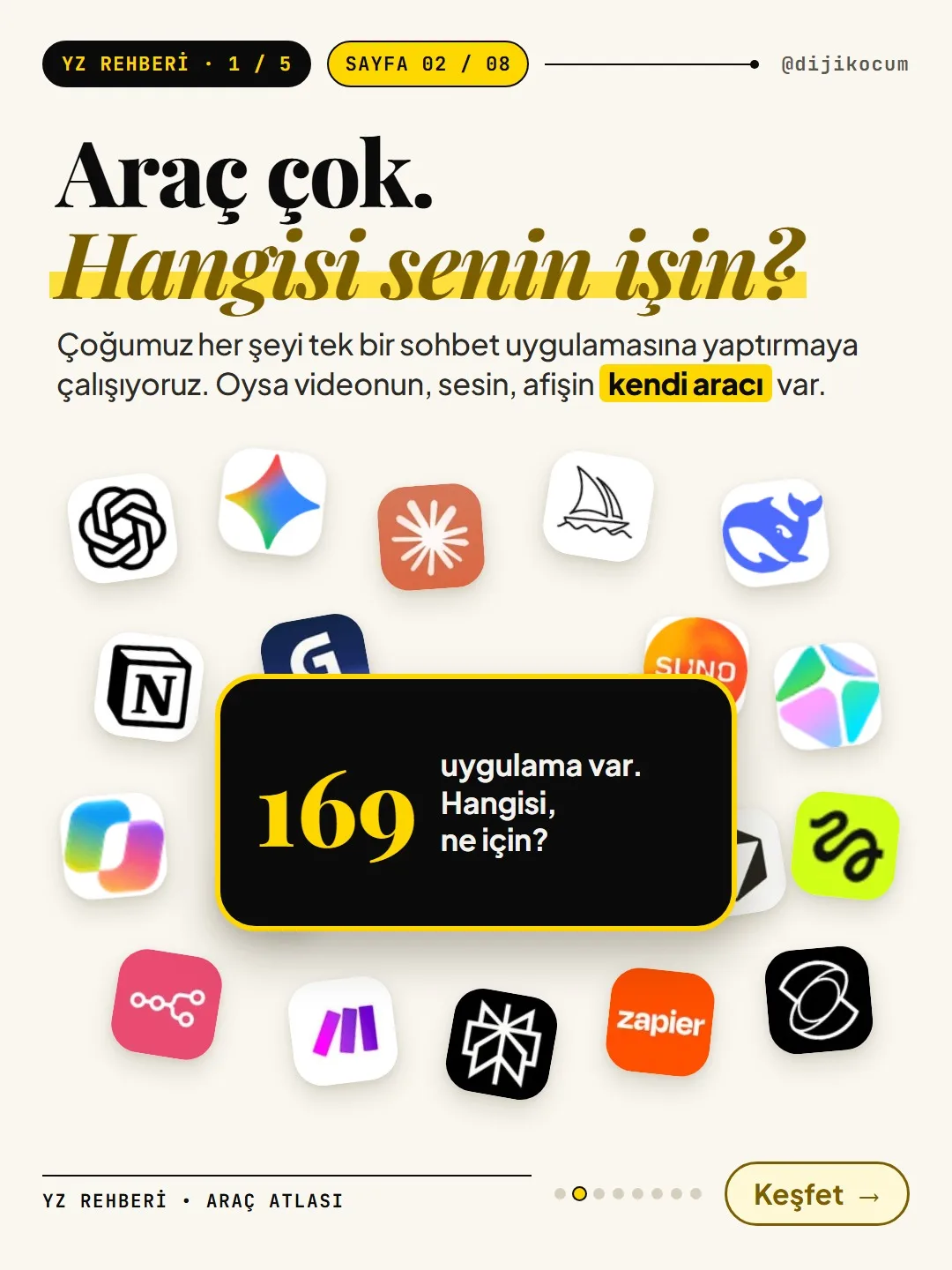
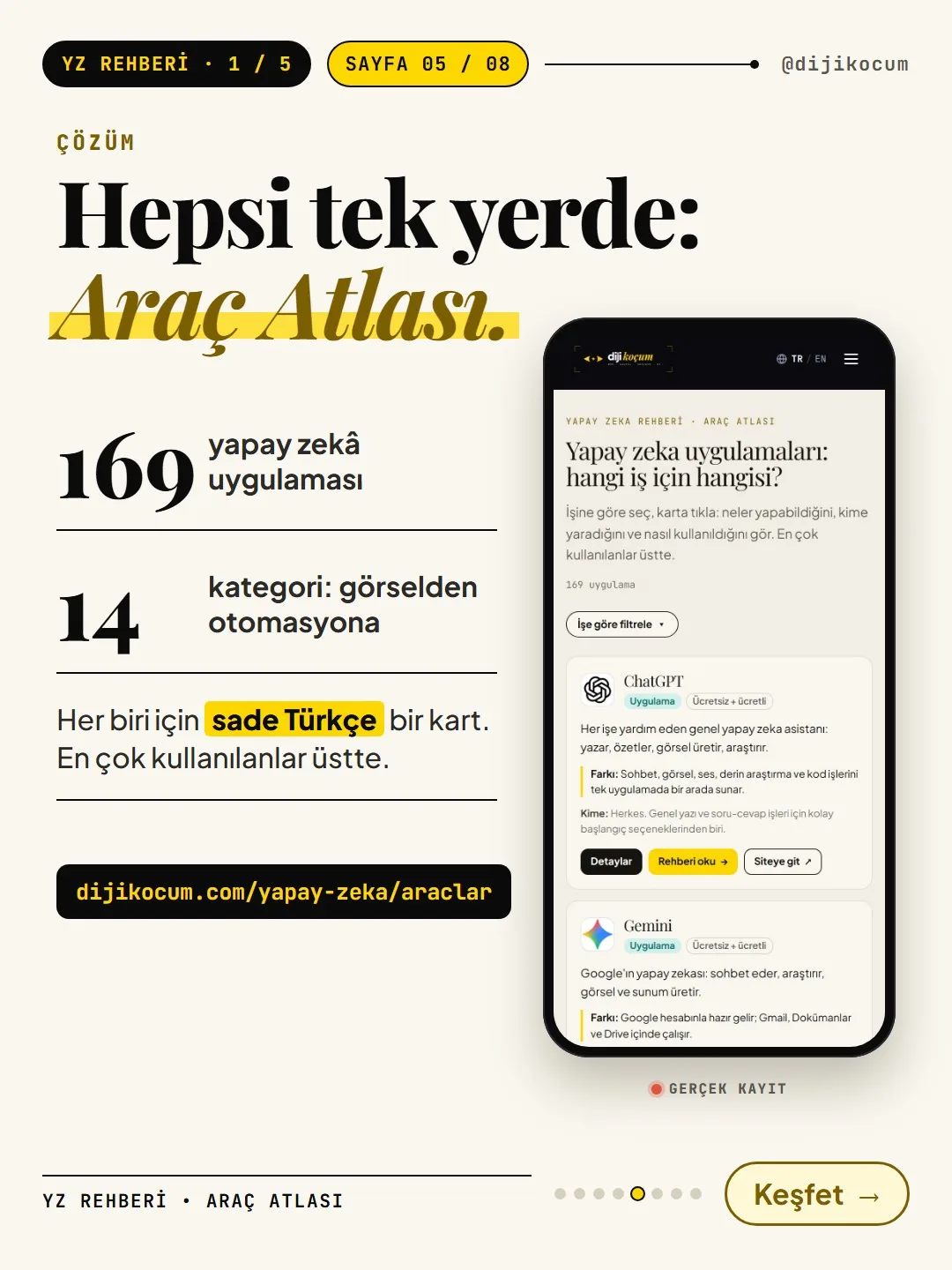
What do you want to do? I'll tell you the tool. 169 AI apps sorted by task; every card shows what it does, its free limit, its price in Turkish lira and the date it was last checked.
Short answer
The Tool Atlas is a free list in the DijiKoçum AI Guide that sorts 169 AI apps into 14 tasks; no sign-up required. You pick your task from "Filter by task," and the most-used apps come first. The card's "Details" section shows what it does, its free limit, its price in Turkish lira (TL) and the date it was last checked. Prices can change; check the date on the card.
8 steps · 5 min read · · Turan Yasin Salcı
Step by step · 8 steps
0/8 checked · saved in this browser only
Open the Tool Atlas.
On your phone or computer, go to dijikocum.com/yapay-zeka/araclar. No sign-up or login required, and it's free.
At the top of the page is the heading "AI apps: which one for which job?" and right below it the total number of apps (169 apps as of November 1, 2026). If a cookie banner appears, you can tap Essential only and move on; you don't need to accept anything else to use the atlas.
Tap "Filter by task" and choose your task.
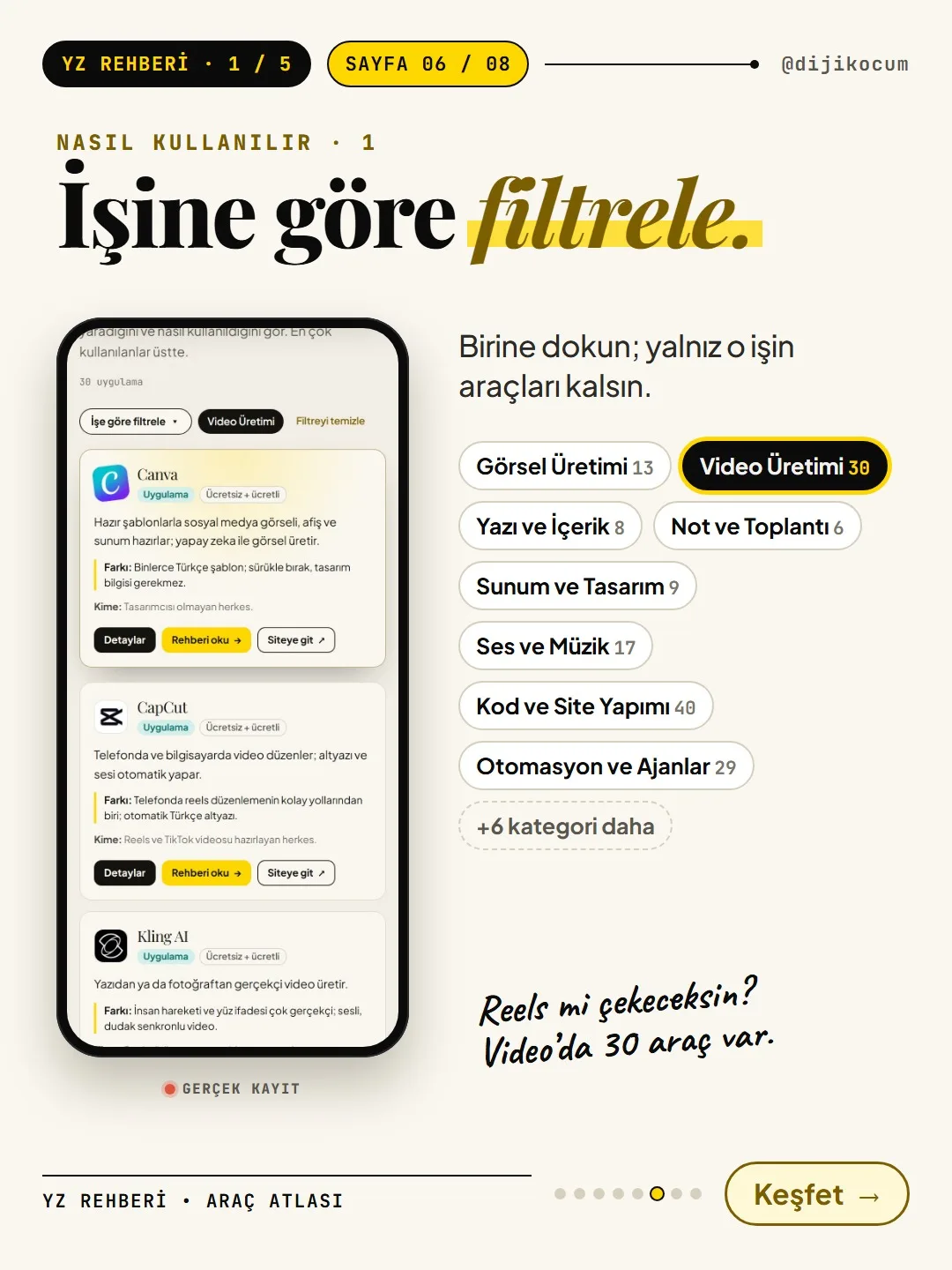
Tap the Filter by task ▾ button below the heading. The categories open; the number next to each shows how many apps are in that task (November 1, 2026):
- Chat Assistants 8 · Writing and Content 8 · Image Generation 13 · Video Generation 30
- Voice and Music 17 · Presentations and Design 9 · Notes and Meetings 6 · Research and Search 12
- Code and Website Building 40 · Automation and Agents 29 · Customer Communication 16
- Data and Reporting 16 · Models and APIs 25 · Security and Monitoring 11
Choose the task you want to do: Video, Image, Voice, Writing, Presentations, Code, Automation… If an app is useful for more than one task, it appears in more than one category. To see everything again, tap All. The atlas has no search box; you find what you're looking for by task category.
The list starts with the most used; look at the first 2–3 cards.
The page is sorted "most used first." In each task, the first 2–3 cards are usually enough to get started. A card shows:
- Name and type: e.g., "App," "Desktop."
- Price chip: "Free," "Free + paid" or "Paid."
- Short description: what it does, in one sentence.
- What sets it apart: how it differs from similar tools.
- For: who it's useful for.
Below are three buttons: Details (the card's details), Read the guide → (the tool's long page) and Visit site ↗ (the tool's own website).
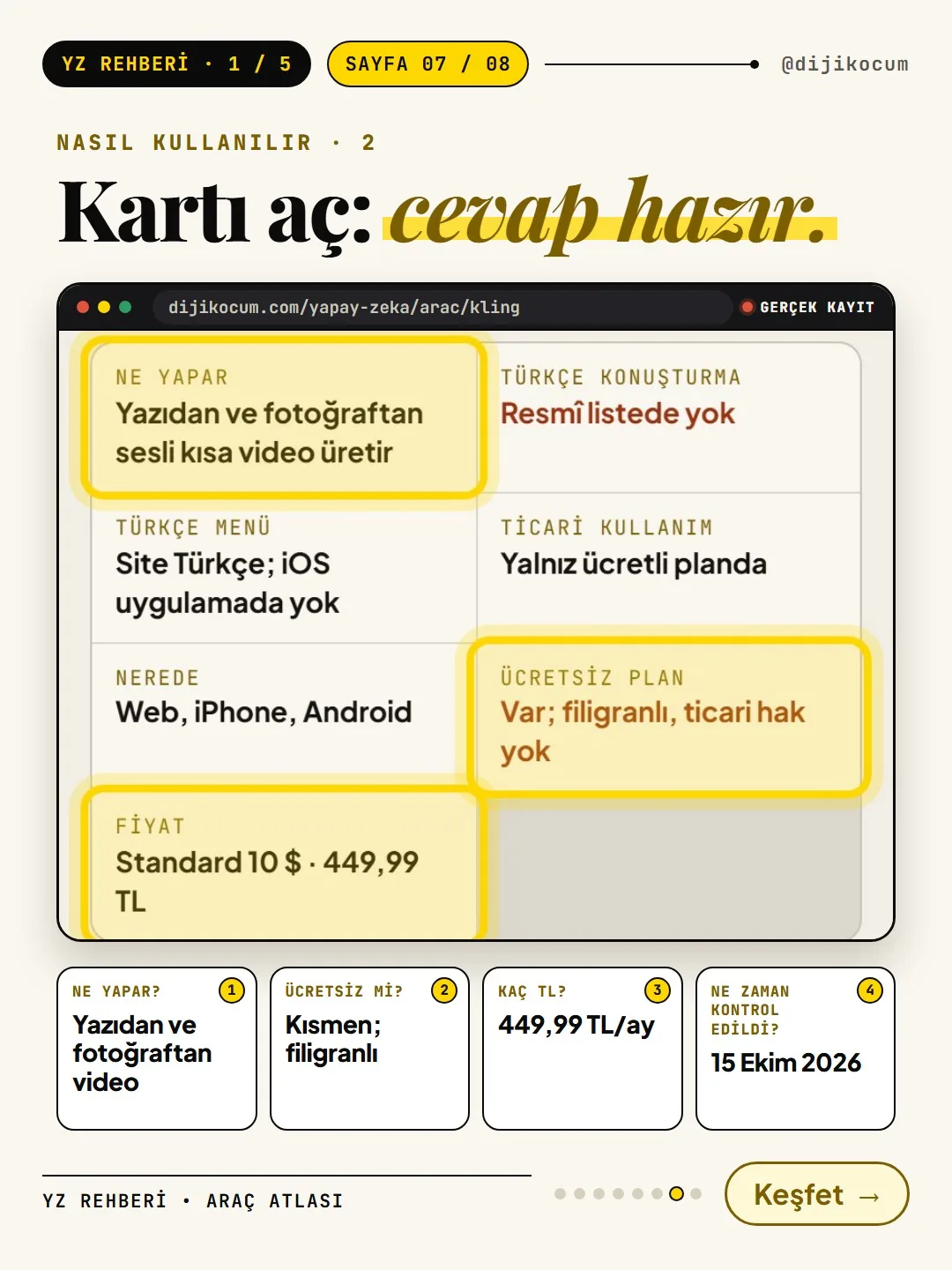
Open "Details": what it does, its free limit, its price in lira and the last check date.
This is the part that will help you most in deciding. Tap Details and you'll see what it does, its free limit, its price in Turkish lira and the date the information was last checked.
If you want more, tap Read the guide. For example, the Kling AI page has a short table at the top: What it does, Turkish voiceover, Turkish menu, Commercial use, Where, Free plan, Price. Below it, buttons under "What do you want to know?" (Is it free?, How much does it cost?, How do I use it?…) take you straight to the relevant section; account setup, first-use steps and FAQs are on the same page too.
Try the free plan first; if it isn't enough, check the price line and decide.
Start with a tool whose price chip says "Free" or "Free + paid," and try it once on your own real work (e.g., captions for a Reel, the copy for a listing). If the free limit isn't enough, look at the price line and decide.
Two things to watch out for:
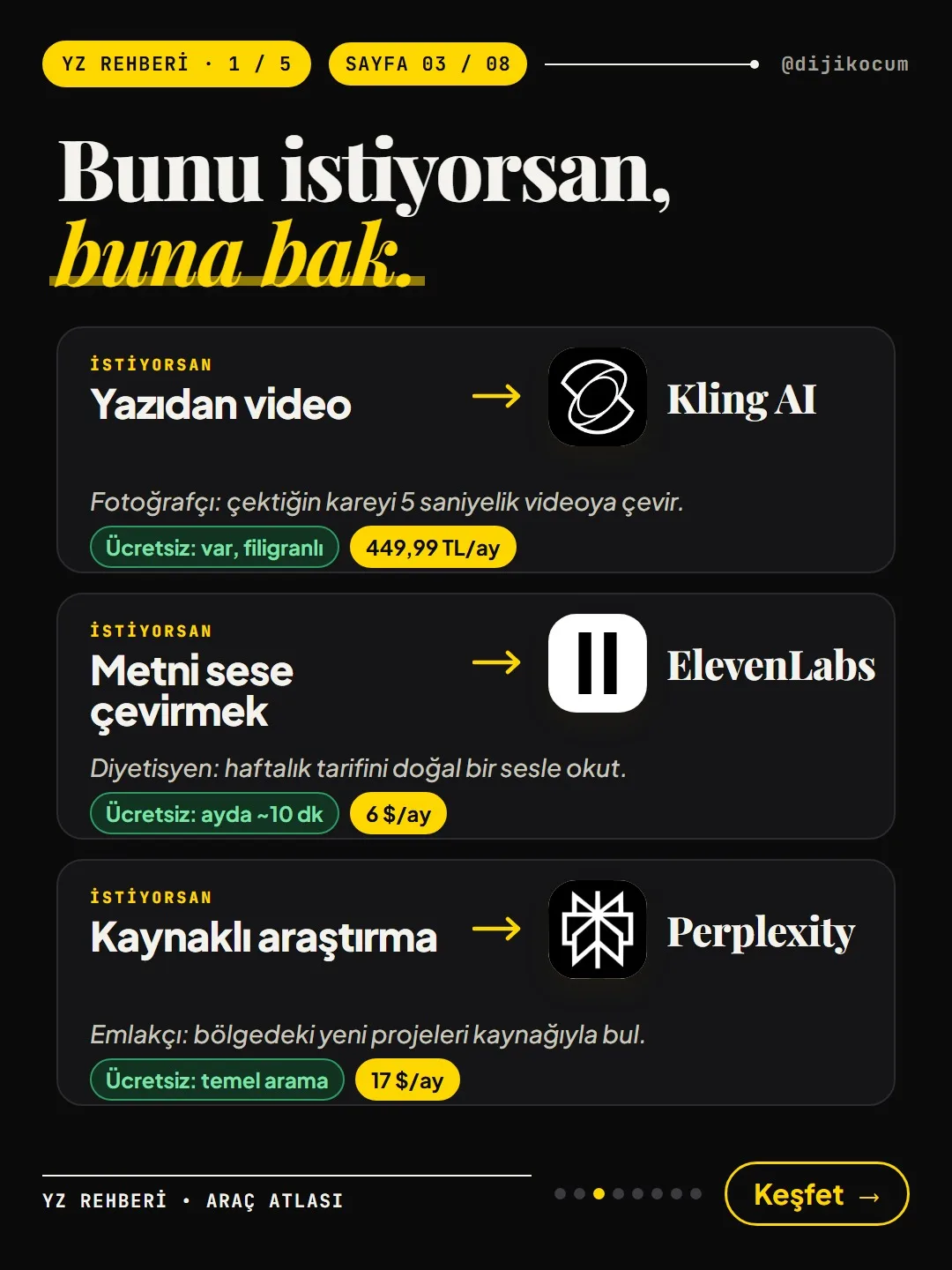
- The free plan doesn't unlock everything. For example, the Kling AI card says the free plan is watermarked and comes without commercial usage rights; if you'll use it in ads, start knowing that.
- Prices can change over time. Check the date on the card; before you pay, also check the current price on the tool's own website.
Examples: which tool for which job?
Three examples straight from the atlas:
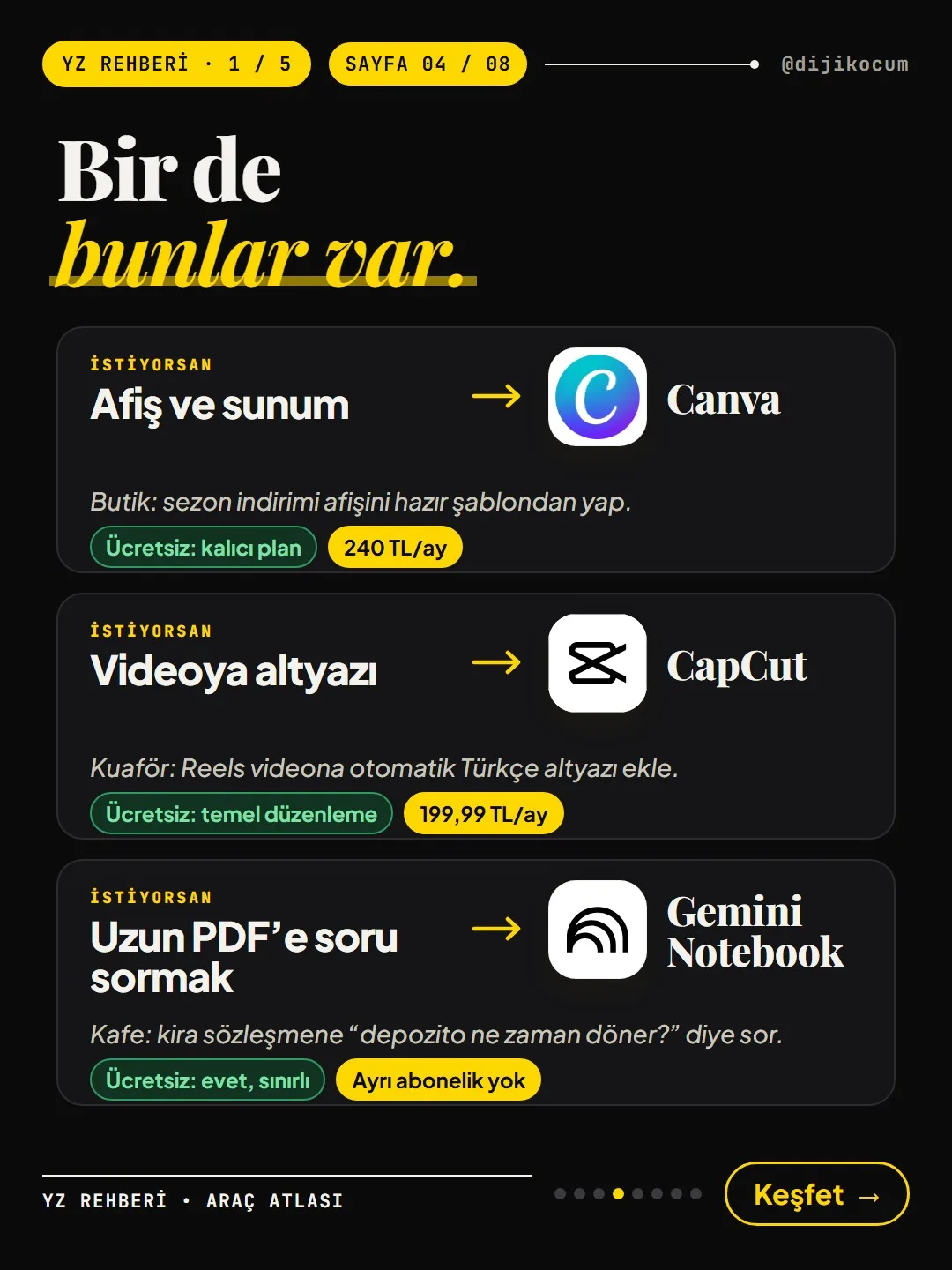
- Captions for Reels → CapCut (basic editing is free). The card's "What sets it apart" line mentions automatic Turkish captions.
- Turning text into speech → ElevenLabs (~10 min free per month). No commercial use on the free plan.
- Asking questions about a long PDF → Gemini Notebook, formerly NotebookLM (free, with usage limits). It relies on the document you upload and shows the section the answer came from; still compare important answers with the source.
Also near the top of the atlas: Kling AI for short videos from text or a photo, Perplexity for research with source links, and Canva for posters and presentations.
A few scenarios for your business.
- Hair salon: Film a hair transformation on your phone, open CapCut from Video Generation and add automatic captions. Export without using items marked Pro.
- Real estate office: To gather rental and sales news for a neighborhood, choose Perplexity from Research and Search; you see the source next to every answer, so click through and check.
- Cafe: For a weekend breakfast poster, open Canva from Presentations and Design; start with a ready-made Turkish template.
- Teacher: Upload a long PDF from a textbook or a regulation to Gemini Notebook and ask "give me a 5-point summary of this section"; check where the answer came from.
- Dietitian: For a voiceover on a recipe video, try ElevenLabs from Voice and Music; first read a short text using the free minutes.
What to do when you get stuck?
If you can't find your task in one category, look at nearby categories (e.g., for Reels, both Video Generation and Voice and Music). Before switching to a tool's paid plan, you can also check the Free Alternatives section to see whether there's a free option that does the same job. If you want a ready-made tool list for your profession, there are Ready-Made Kits.
What's written on a card is the information as of the site's check date; tools can change their plans, prices and names (like NotebookLM's new name being Gemini Notebook). If you get stuck somewhere, message @dijikocum on Instagram.
How to measure it
Pick a single task you'll do this week (e.g., captions for a Reel). Try the first two free tools for that task from the atlas on the same content, and note how long it took each to get a result. Use whichever was less hassle for a month; count how many times you hit the free limit, and only then decide on a paid plan.
Sources
- DDijiKoçum AI Guide: Tool Atlas (169 apps, 14 categories)Our own data · checked: November 1, 2026
- DDijiKoçum Tool Atlas: the Kling AI card (example of free plan, price, check date)Our own data · checked: November 1, 2026
[A] primary source · [B] industry research · [C] practitioner · [D] our own data
Frequently asked questions
Is the Tool Atlas paid? Do I need to sign up?
No. The atlas is free and doesn't require sign-up; you just open the page and filter. Some of the tools on the cards may be paid; you'll see that on each card's price chip.
Are the prices on the cards up to date?
Every card shows the date the information was last checked; prices reflect that date and can change over time. Before you pay, also check the current price on the tool's own website.
Doesn't the atlas have a search box?
Not as of November 1, 2026. You find what you're looking for among the 14 categories in "Filter by task"; if a tool is useful for more than one task, it appears in more than one category.
What does "Free + paid" mean?
The tool has a free plan, but some features or more usage are on the paid plan. You can see what's included in the free plan on the "Details" or "Read the guide" page; for example, some tools keep a watermark or don't allow commercial use on the free plan.
Is the ranking an ad or a paid recommendation?
The list is sorted "most used first." A tool being at the top doesn't mean it's the best for your business; try the first 2–3 cards on your own work and decide.
Why is NotebookLM listed as Gemini Notebook?
In the atlas, the tool's card is listed under the name "Gemini Notebook (formerly NotebookLM)." It's the same tool: it answers from the PDFs and documents you upload and creates audio overviews and presentations.
Next step
Let’s look at your site together.
Free Digital Checkup: a health score for your website, your ads and your visibility in AI search, plus what to fix first. 3 minutes.
More guides
Tools
How to transform product photos with ChatGPT Images 2.5: 20 ready-made image prompts (step by step)
26 steps · 14 min
Tools
5 Free Animation Skills for Claude Code: How to Install Three.js, GSAP, design-dna, LottieFiles and Genjutsu (Step by Step)
16 steps · 9 min
Tools
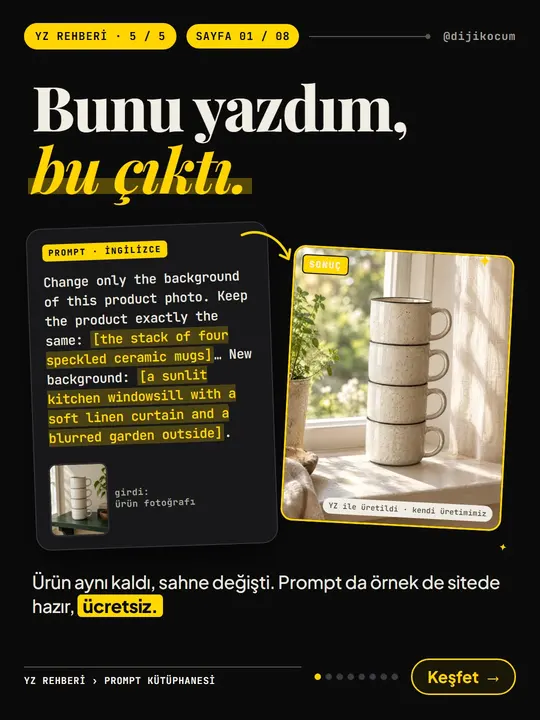
How to Use the Prompt Library and Prompt Builder: Copy a Ready-Made Prompt, Fill In the Blanks
9 steps · 7 min