Visuals in Turkish · the full text is on this page
How-To Guide · Automation
How to Connect Claude to Gmail, Google Calendar, Drive and Canva: Safe Connector Setup, Step by Step
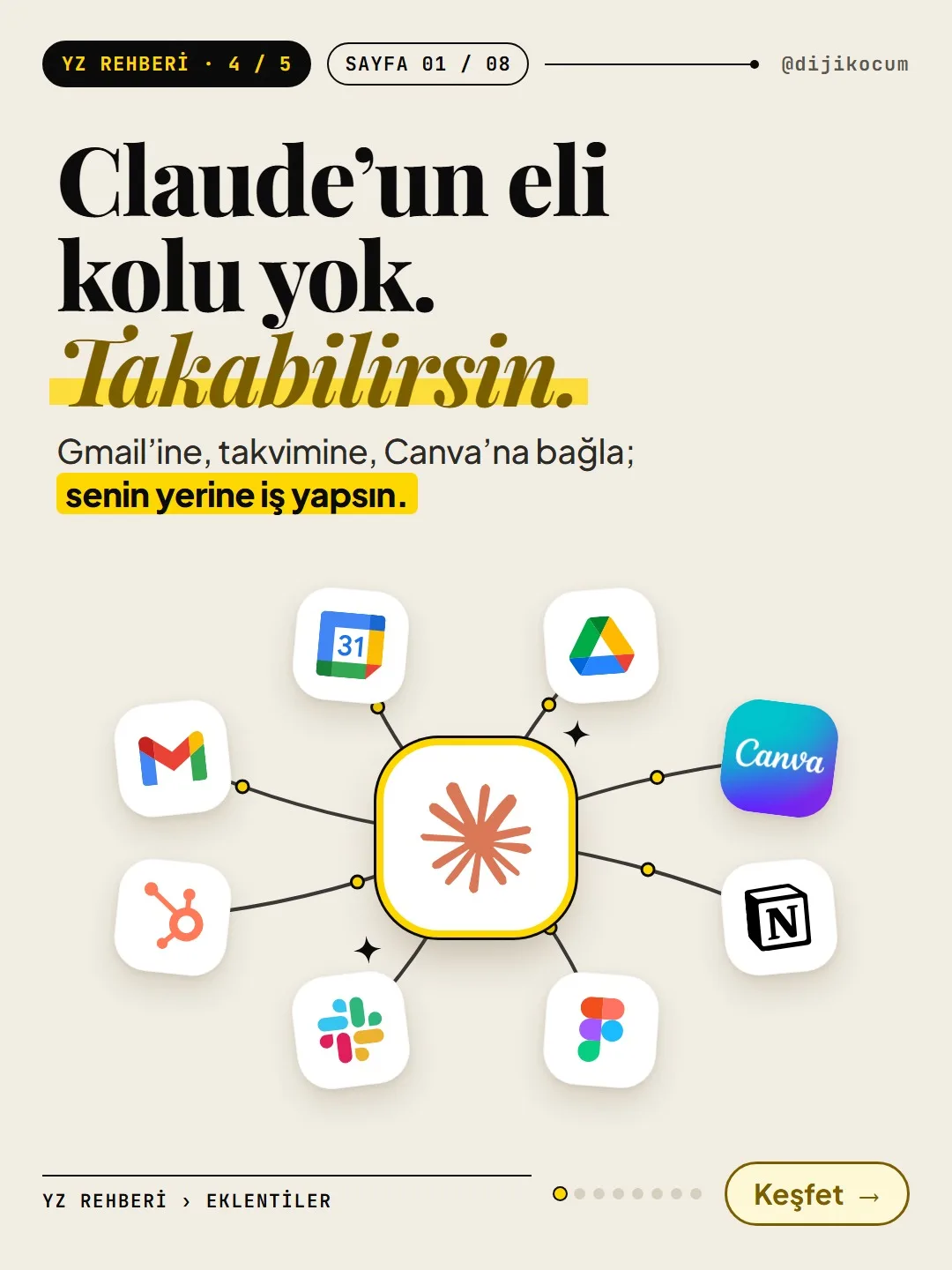
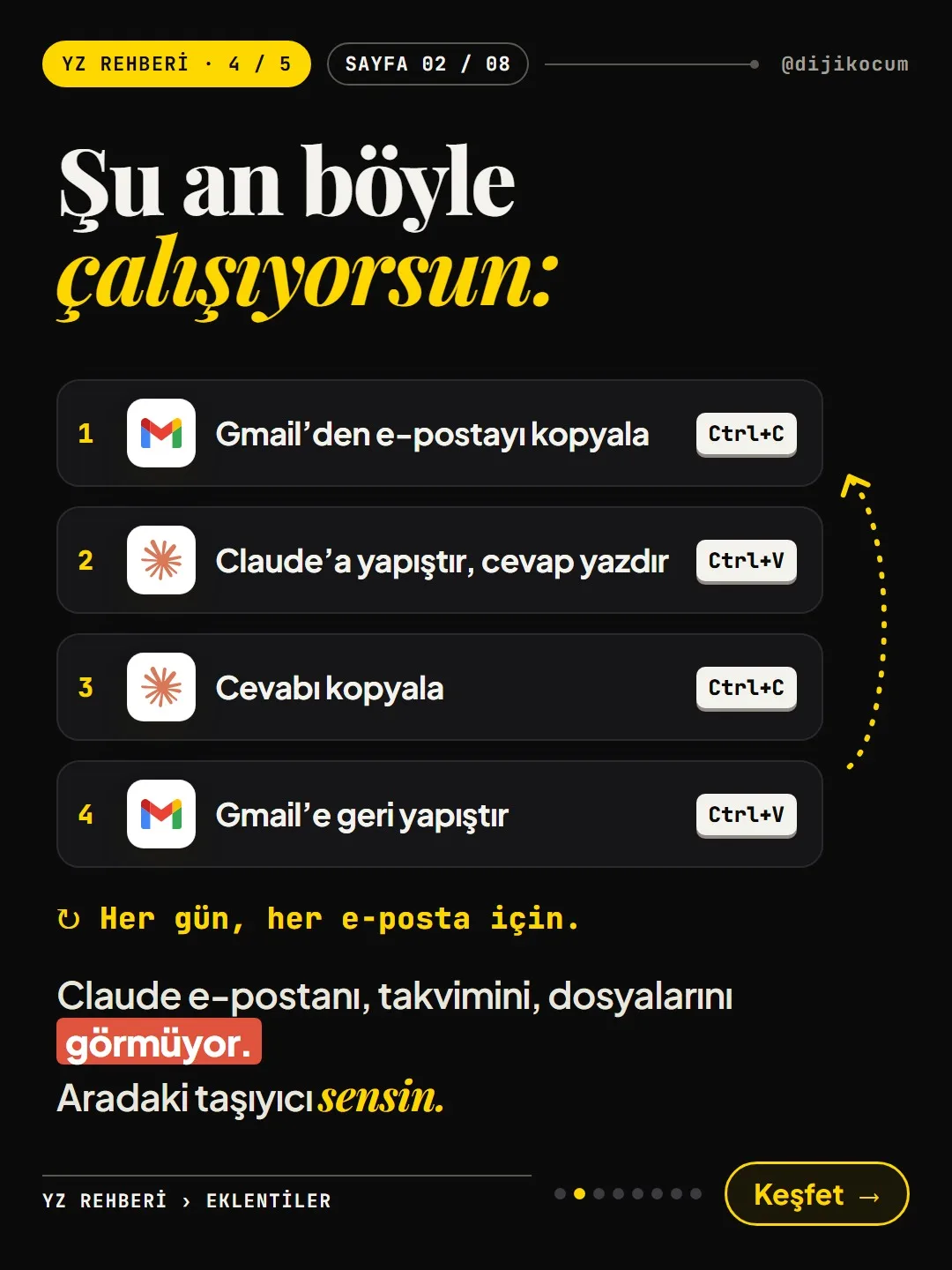
Claude has no hands, but you can give it some. Stop shuttling things back and forth with copy-paste; just give each plugin only the permissions it needs.
Short answer
The Plugins section of DijiKoçum’s AI Guide explains 73 plugins that connect Claude to apps like Gmail, Calendar, Drive, Canva and Notion. Each card says what the plugin does, where it works, which account it needs and how to install it. When you connect one, grant only the permissions it needs, keep actions like sending on approval, and never share your password with anyone.
12 steps · 7 min read · · Turan Yasin Salcı
Step by step · 12 steps
0/12 checked · saved in this browser only
Open the Plugins section and learn the types.
Go to dijikocum.com/yapay-zeka/eklentiler. It’s free, with no sign-up.
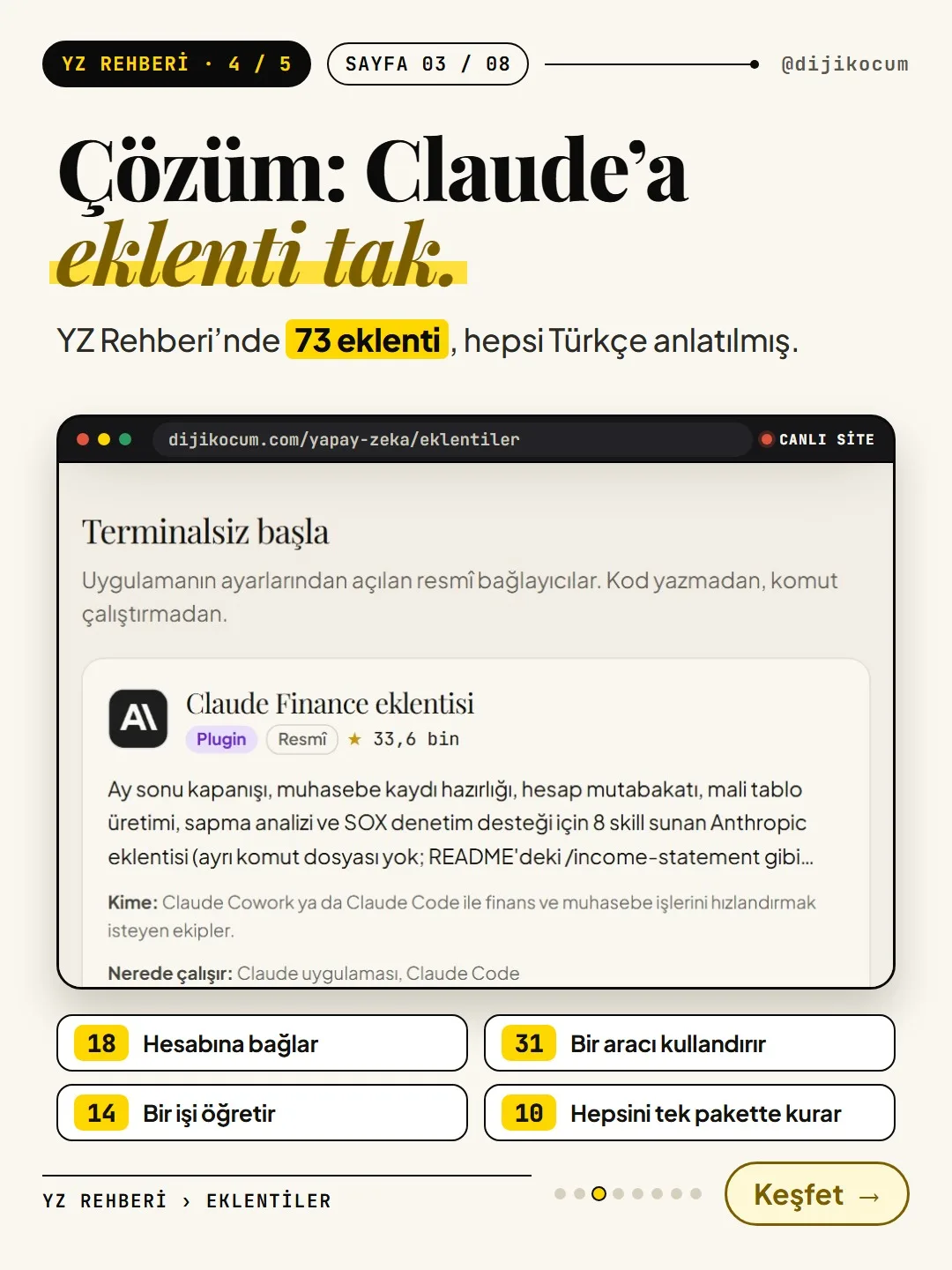
The page lists 73 plugins (November 1, 2026); the boxes at the top explain the four types in plain language:
- Connector (18): turned on in Claude or ChatGPT settings; connects to accounts like Gmail and Drive. No terminal needed. If you’re just starting, start here.
- MCP (31): lets the AI use a tool (a browser, a database, a design file).
- Skill (14): an instruction file that teaches the AI a job.
- Plugin (10): installs several skills, commands and MCPs in a single package.
With the Anywhere chips below them, you can filter plugins by where they work: the Claude app, Claude Code, ChatGPT, Codex, Cursor, VS Code, Gemini CLI, Microsoft Excel.
Start with the “Start without a terminal” shelf.
Scroll down the page and you’ll reach the shelves: Start without a terminal, Marketing and SEO, Developer essentials, Connected to Turkish services, and the Watchlist.
The Start without a terminal shelf has official connectors you turn on in the app’s settings: Gmail, Google Calendar, Google Drive, Canva, Notion and others. They install without writing code or running commands.
On each card, look at:
- Type and badge: “Connector” and “Official” (built by the app’s own maker) or “Platform-built.”
- What it does: e.g. the Gmail card says “lets it search, read and summarize threads; with your approval, it drafts, sends, replies to and forwards emails.”
- Who it’s for and Where it works (e.g. the Claude app, Claude Code).
Tap “Details” on the card: it says what the plugin does, where it works, which account it needs and how to install it.
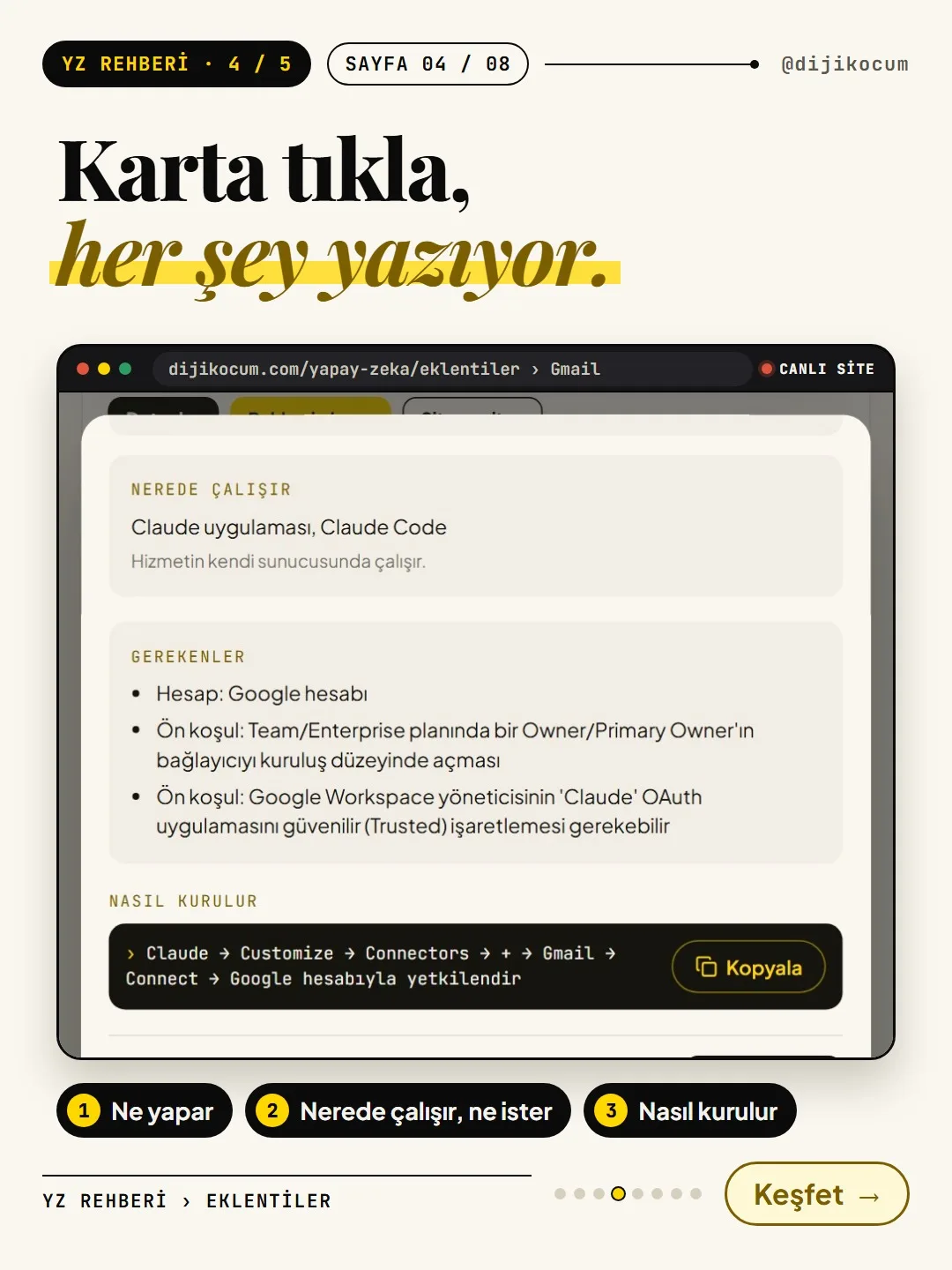
Tap Details and a window opens. Before installing, read these three things in particular:
- Where it works: on the service’s own server, or on your computer.
- What you need: which account it requires (e.g. a Google account for Gmail), and whether it asks for a key or a paid plan.
- How to install: the setup line. For Gmail: Claude → Customize → Connectors → + → Gmail → Connect → authorize with your Google account.
Check the plan requirement too. The Gmail, Calendar and Drive cards note that the official sources contradict each other (the Claude Help Center says all users, Claude Docs says paid plans); the surest way to know is to check whether it shows up under Customize › Connectors in your own account.
In Claude: Customize › Connectors › + › choose the app › Connect, then grant permission with your account.
Open Claude (the web or desktop app) and follow this path:
- 01Go to Customize.
- 02Open Connectors.
- 03Click the + icon and choose the app from the list (e.g. Google Calendar).
- 04Click Connect.
- 05The window that opens is the app’s own sign-in page (e.g. Google). Sign in with your account and read the permissions screen.
The permissions screen lists what Claude will be able to read and write. If a permission seems unnecessary for your work, don’t approve it. If you’re on a Team or Enterprise plan, the organization owner may need to enable these connectors first.
Security: grant only the permissions you need, keep write actions on approval, don’t share your password.
A connector lets Claude do things in your account, so don’t skip these rules:
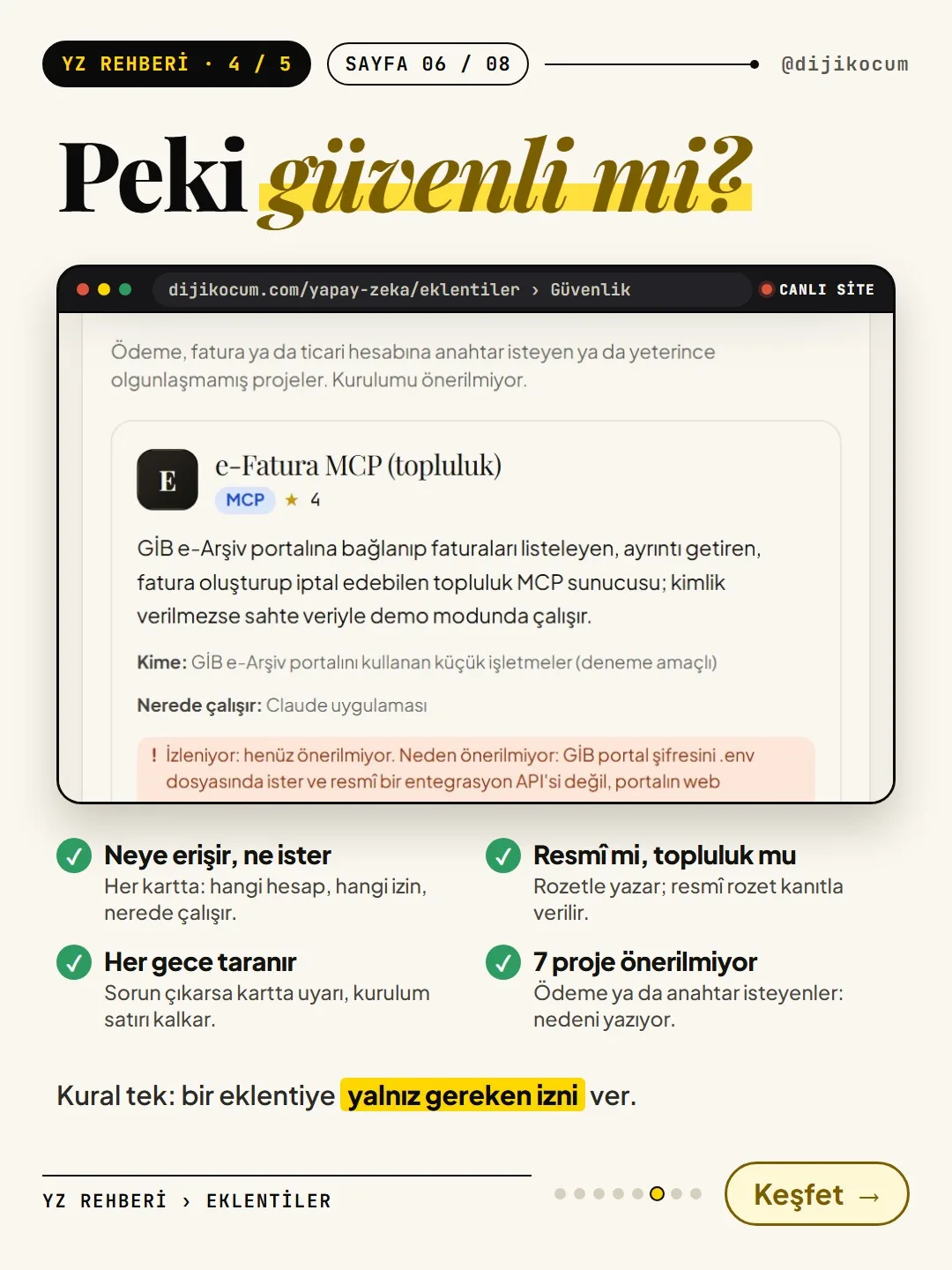
- Grant only the permissions you need. That’s also the rule in the site’s Security box: “When you give a plugin access to an account or a key, grant only the permissions it needs.” If you only want it to read your calendar, it doesn’t need write actions.
- Keep write actions like sending on approval. According to the Claude Help Center, sending, replying and forwarding in Gmail ask for your approval every time by default. When asked for permission for a tool, use the “Allow always” option only for tools you fully trust that only read. If you see an option like “Needs approval” in the tool settings, put write actions such as sending emails, deleting events and sharing files under it; turn off the tools you don’t use.
- Never share your password with anyone. With official connectors, you sign in on the app’s own page; you never type your password into Claude, a chat or a settings file. If a plugin asks you to write your password into a file in plain text, don’t install it: there is a project on the site’s Watchlist shelf that is not recommended for exactly this reason.
- Watch out for untrusted content. The Gmail card includes Google’s warning: hidden instructions in untrusted emails may try to steer the assistant into doing the wrong thing. If Claude asks for approval for an action you didn’t ask for after reading an email, decline it.
- Disconnect whenever you want. You can remove or reconnect a connector under Customize › Connectors.
In a chat, turn it on under + › Connectors and ask.
Start a new chat. Click the + menu in the message box, hover over Connectors and turn on the connector you’ll use (keep the ones you don’t need in that chat turned off). Then write your request in plain language. If Claude asks for approval before a write action, read what it’s going to do and approve it if it’s right.
If you like, set write actions like sending to “Needs approval” (if the option appears under that name in your account); grant only the permissions you need. Details in step 5.
Example 1 · Calendar: ask for your free time.
With Google Calendar connected, type this. Claude checks your calendar and lists the free slots; this is a read action and needs no approval:
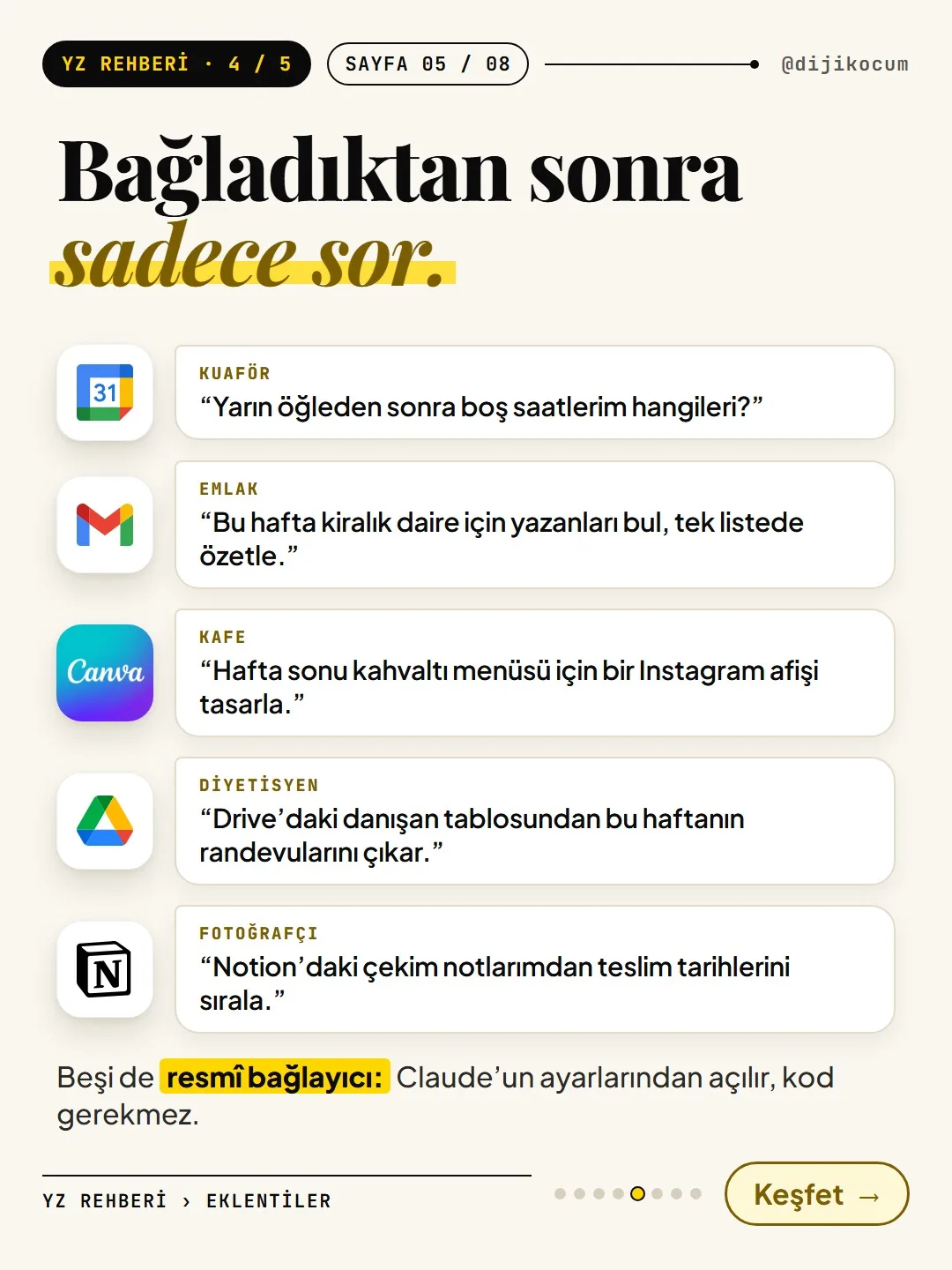
Which hours am I free tomorrow afternoon?Example 2 · Gmail: gather scattered messages into one list.
With Gmail connected, type this. Claude searches your inbox and summarizes; it won’t send a reply to anyone unless you ask and approve:
Find everyone who wrote this week about the apartment for rent and summarize them in one list.Example 3 · Canva: have it design a poster from the chat.
With Canva connected, type this. The Canva card notes that generating designs may use your monthly Canva AI credits; on the free plan, some features (brand templates, resizing) are limited. Open the result in Canva and check it:
Design an Instagram poster for our weekend breakfast menu.A few scenarios for your business.
- Hair salon: Connect Google Calendar and ask, “How many free appointment slots do I have on Saturday?” If you’ll have it create appointments, approve each event as you go; the calendar card also notes that the write features are not clear in the sources.
- Dietitian: Connect Google Drive and say, “Summarize the October meal plan file in Drive.” Before working with files that contain client information, think about which folders it can access; don’t leave sharing and trashing actions without approval.
- Photographer: Connect Notion and say, “List this month’s deliveries from my shoot notes page.” According to the Notion card, the connector works with your full Notion permissions; it can see every page you can access.
- E-commerce: Start with read actions (e.g. having it summarize the product spreadsheet in Drive). Before connecting a store or payment account, read the card’s “What you need” section and risk notes.
Read the not-recommended list and the Security box.
The Watchlist (7) shelf at the bottom of the page has Turkish community projects that are not recommended yet; each card carries the warning “On the watchlist: not recommended yet” and the reason (e.g. asking for a password in plain text, not having been tested on a live system). Don’t install these.
According to the Security box at the very bottom, every plugin on the list is scanned every night: malicious package reports, pulled versions, deleted repositories. If a problem comes up, a warning appears on the card and the setup line is removed. This scan isn’t a guarantee; when you grant permissions, the final call is yours.
If you use Claude Code, GitHub projects are here too.
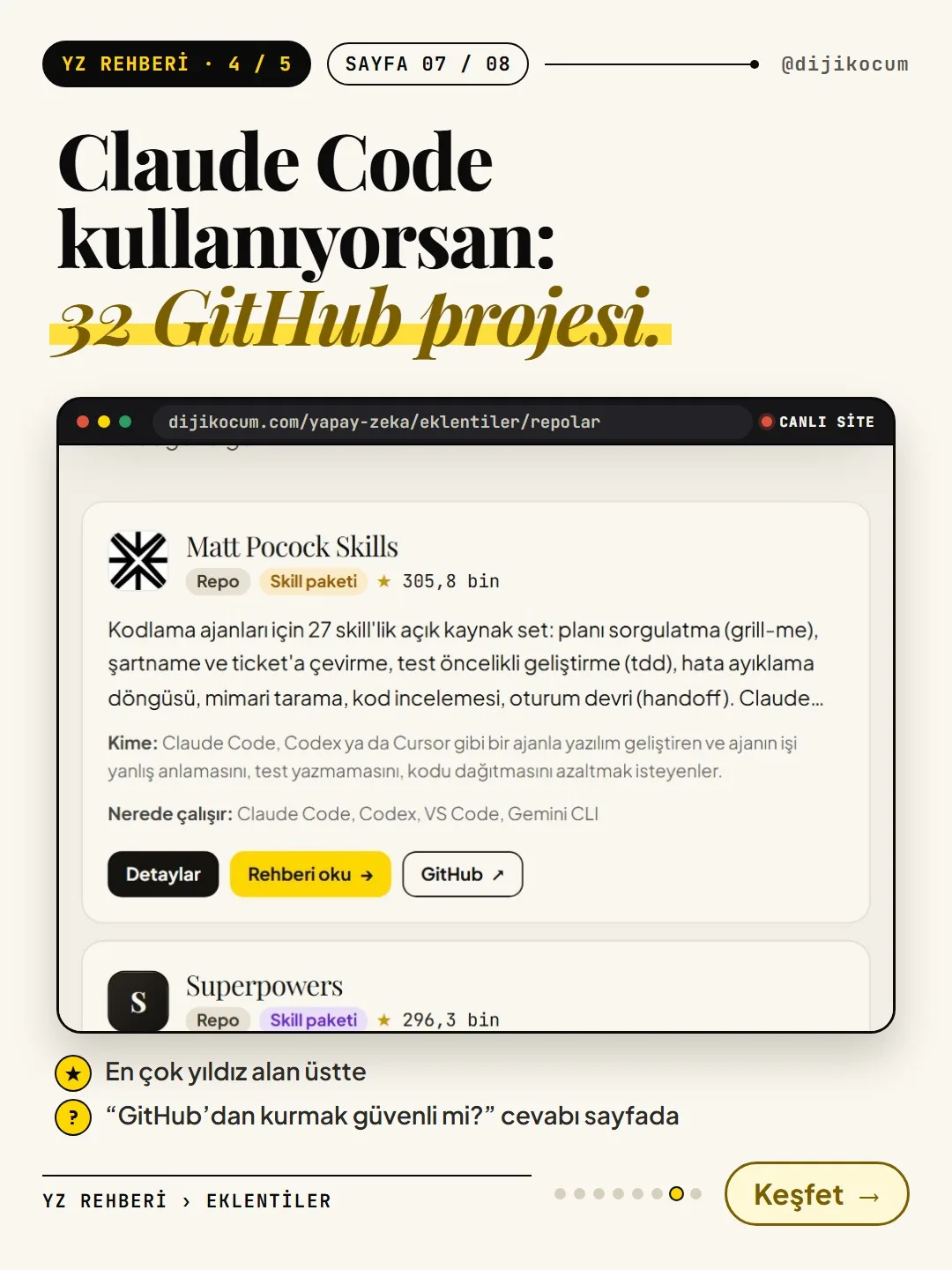
If you use Claude Code or Codex on your computer, the dijikocum.com/yapay-zeka/eklentiler/repolar page has 32 GitHub projects, with the most-starred on GitHub at the top. Click a row to see what it does and how to install it. Before installing, read the answer to the question “Is it safe to install things from GitHub?” on the same page: GitHub is a distribution platform, not an auditor.
If you get stuck anywhere, message @dijikocum on Instagram.
How to measure it
Start with a single connector (e.g. Google Calendar) and, for a week, ask Claude every day for something you normally do with copy-paste. At the end of the week, count how many times you got an answer without switching apps and how many times you were asked for approval. Go back to Customize › Connectors and review the apps you connected and the permissions you granted; remove any connection you don’t use.
Sources
- AClaude Help Center: Using the Google Workspace connectors (Gmail, Calendar, Drive; default approval)Primary source · checked: November 1, 2026
- AClaude Help Center: Getting started with custom connectors using remote MCP (security recommendations, “Allow always”)Primary source · checked: November 1, 2026
- DDijiKoçum AI Guide: Plugins (73 plugins, shelves, Security box)Our own data · checked: November 1, 2026
- DDijiKoçum AI Guide: Repositories (32 GitHub projects)Our own data · checked: November 1, 2026
[A] primary source · [B] industry research · [C] practitioner · [D] our own data
Frequently asked questions
If I connect Claude to Gmail, will it send my emails on its own?
According to the Claude Help Center, sending, replying and forwarding ask for your approval every time by default. On Team or Enterprise plans, owners can set these to run without approval; for individual use, always keep sending actions on approval and read the text before you approve.
Do I need to give Claude my password?
No. With official connectors, you sign in on the app’s own page (e.g. Google) and approve the permissions screen. Don’t type your password into a chat, into Claude or into a settings file; don’t install a plugin that asks for it.
Are connectors free?
The Gmail, Calendar and Drive cards don’t list a separate fee, but the plan requirement is contradictory in the official sources (all users / paid plans). Check whether it shows up under Customize › Connectors in your own account. Some connectors, like Canva, may use their own app’s credits.
Which permissions should I grant?
Only as much as the job requires. The card says what the plugin can read and what it can write; if reading is enough, keep write actions off or on approval. Use the “Allow always” option only for tools you trust that only read.
How do I remove a connection?
In Claude, go to Customize › Connectors and remove or reconnect the connector. You can also review third-party access in the security settings of the account you connected (e.g. your Google account).
Connector, MCP, skill, plugin: which should I start with?
If you don’t code, start with the official connectors on the “Start without a terminal” shelf. Most MCPs, skills and plugins are for tools that run on your computer, like Claude Code, and require installation.
Next step
Let’s look at your site together.
Free Digital Checkup: a health score for your website, your ads and your visibility in AI search, plus what to fix first. 3 minutes.
More guides

How-To Guide
How to connect Instagram to Claude: two safe ways to set up comment-to-DM, a DM assistant and scheduled posting (step by step)
15 steps · 11 min

How-To Guide
Make your restaurant's Instagram look like a menu: a 6-post feed template and shot list
9 steps · 6 min
How-To Guide
Why Do AI Faces Look Plastic? A 10-Term Realistic Portrait Glossary and a Ready-Made Prompt Template
15 steps · 7 min