
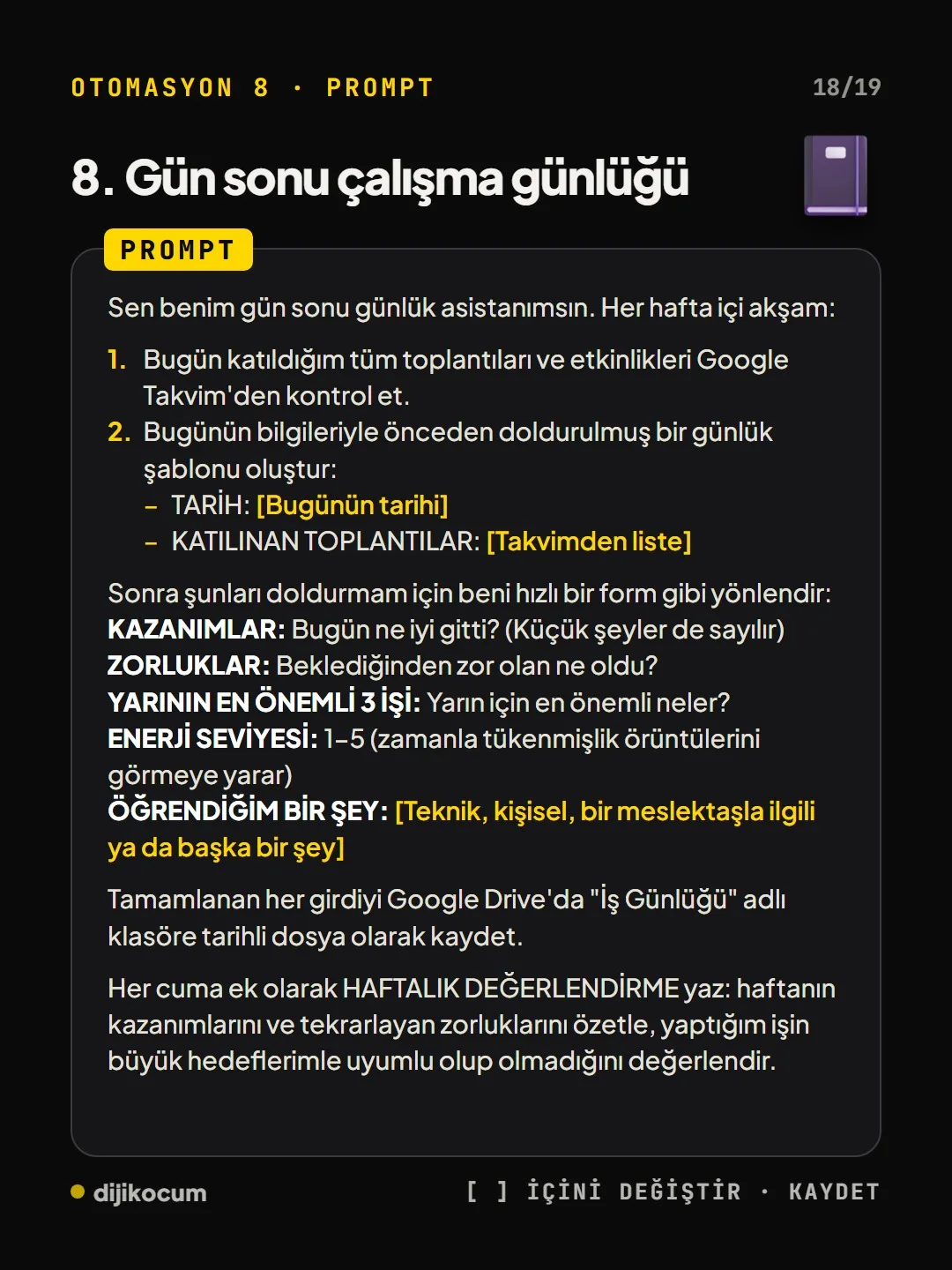

Visuals in Turkish · the full text is on this page
How-To Guide · Automation
8 Non-Technical Claude Automations With Scheduled Tasks
Eight automations you can set up today with Claude’s scheduled tasks, no coding required, each with a ready-made prompt.
Short answer
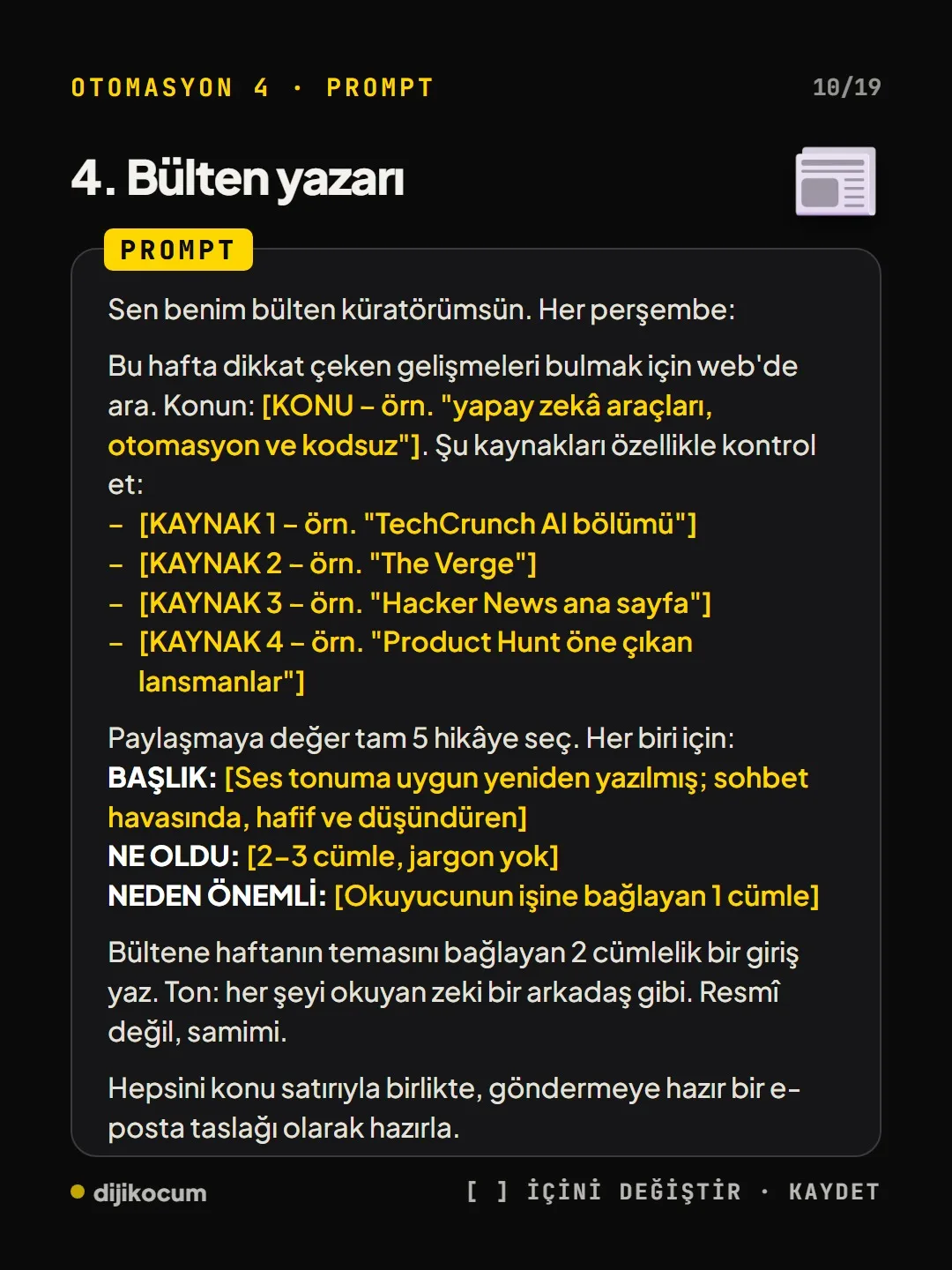
With scheduled tasks in the Claude desktop app, you can set up 8 automations without writing code: competitor tracking, weekly content ideas, meeting prep, newsletter drafts, brand mention monitoring, receipt organizing, Downloads folder cleanup and an end-of-day log. Each one runs on a prompt, a schedule and connectors such as Gmail, Google Calendar, Drive or Slack. For the best results, start with one automation and read its output for a week. DijiKoçum’s PDF gives the automations to set up first and filled-in prompt lines for 12 industries.
5 steps · 2 min read · · Turan Yasin Salcı
Step by step · 5 steps
0/5 checked · saved in this browser only
Open scheduled tasks.
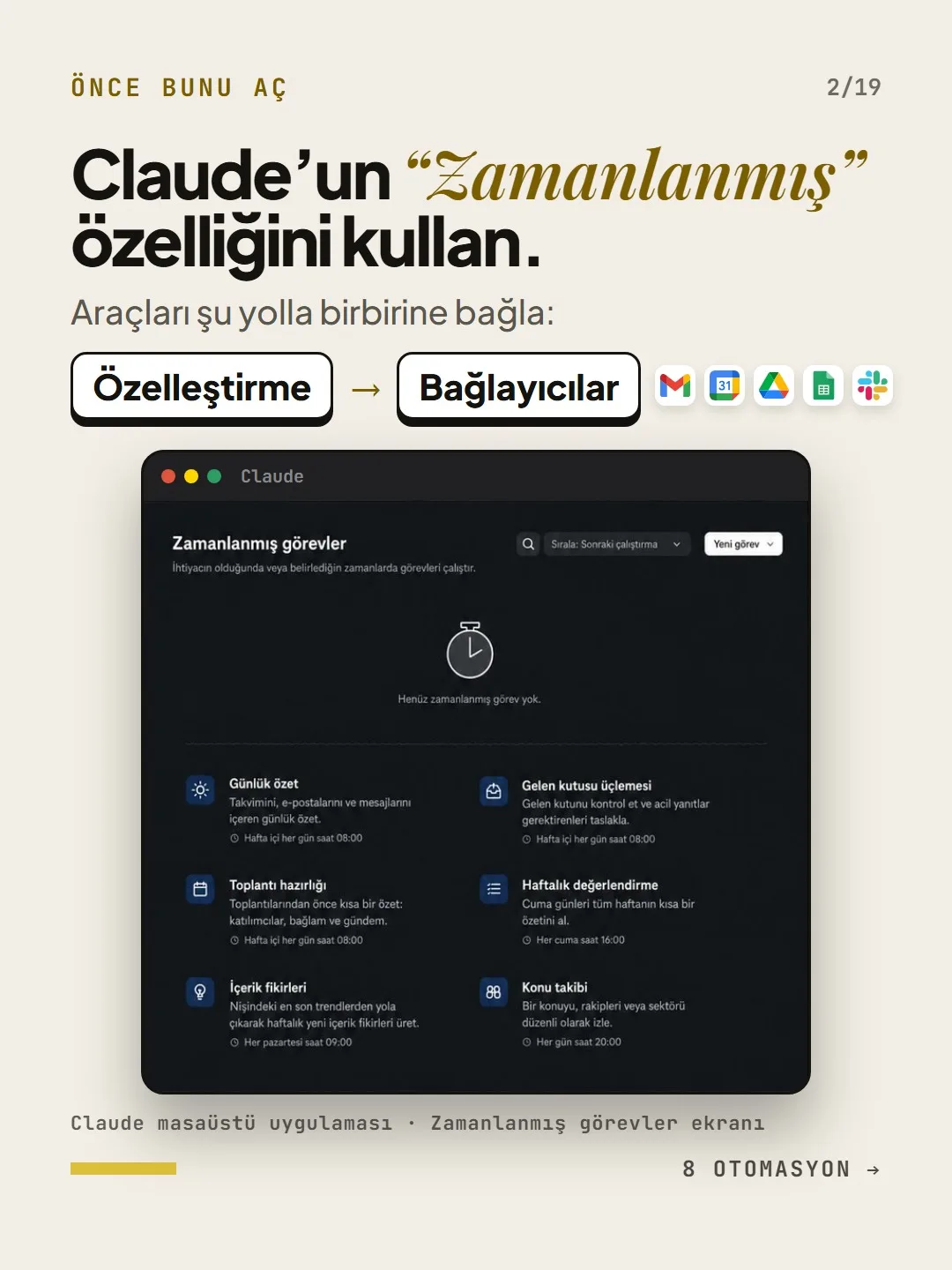
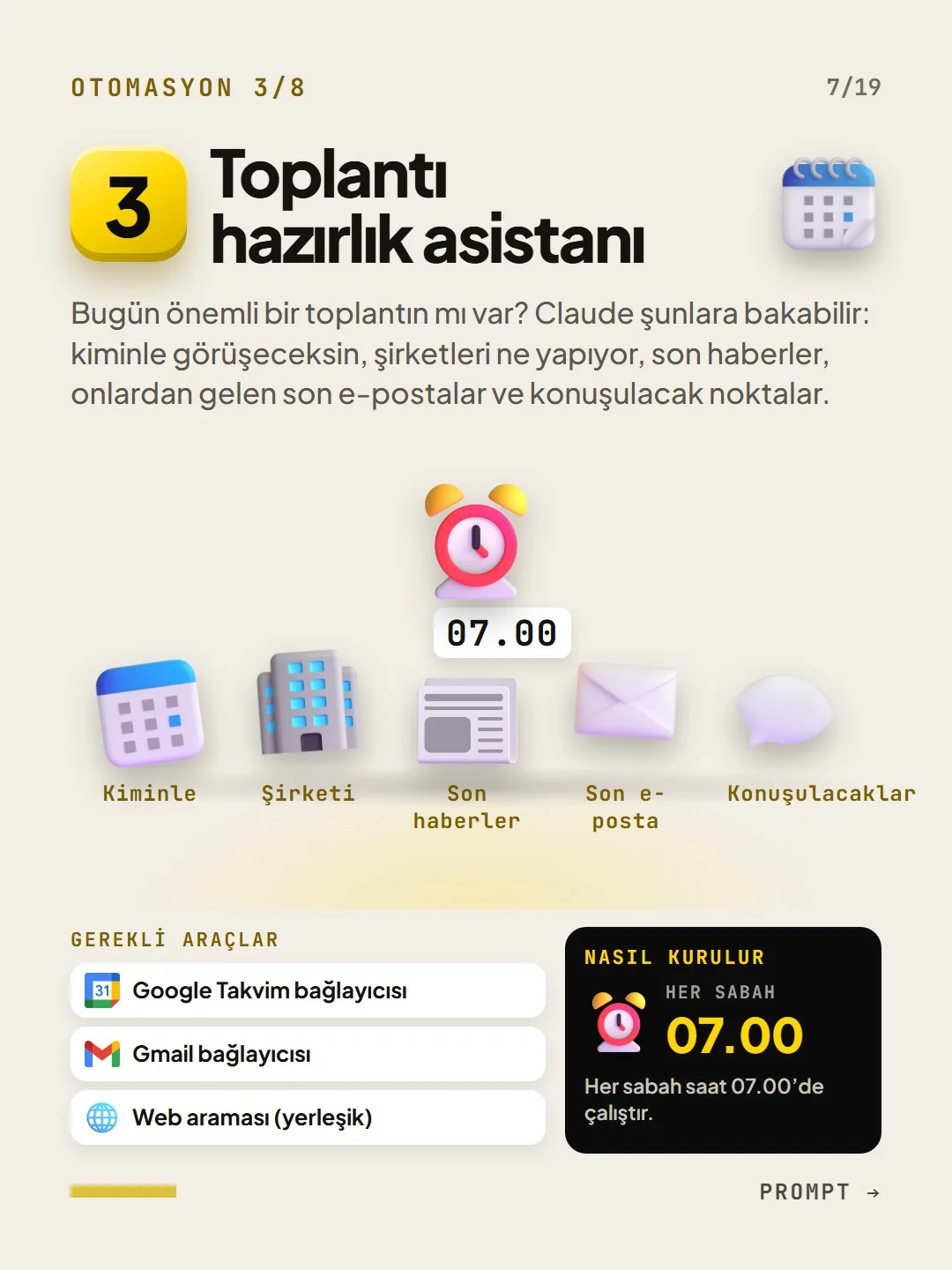
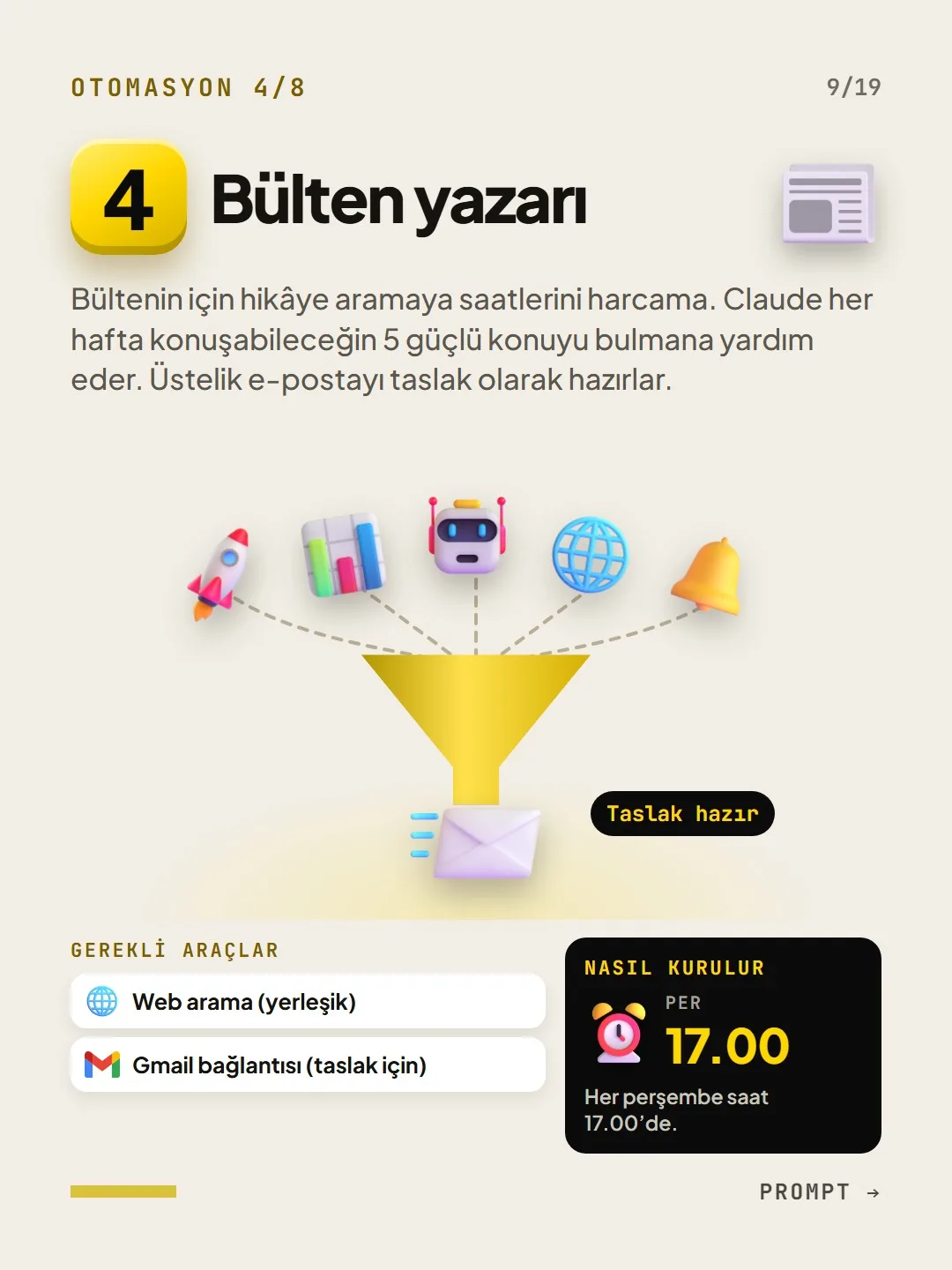
In the Claude desktop app, go to the Scheduled tasks screen and choose New task. Connect tools like Gmail, Google Calendar, Drive, Sheets and Slack under Customize → Connectors.
Pick an automation.
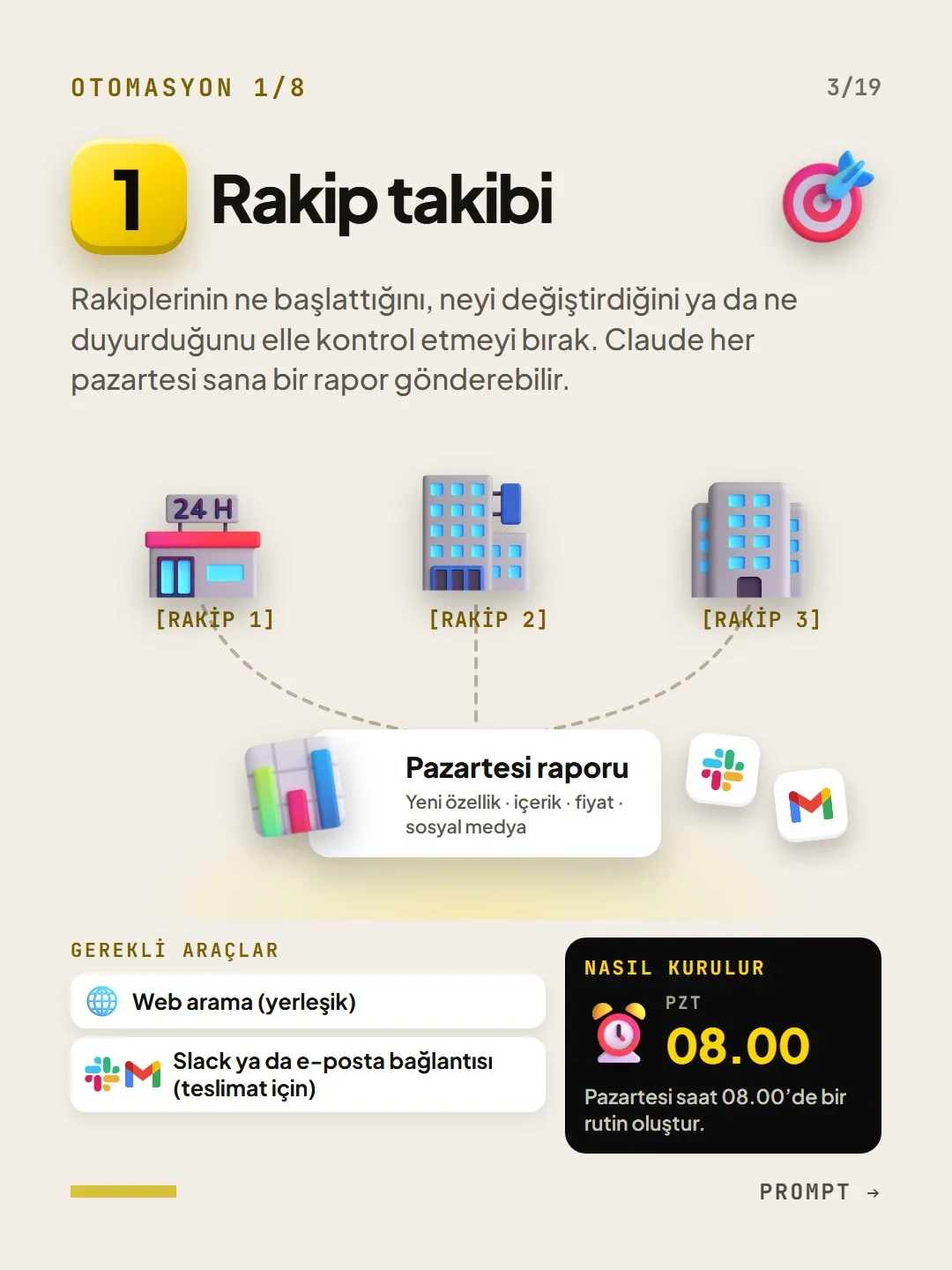
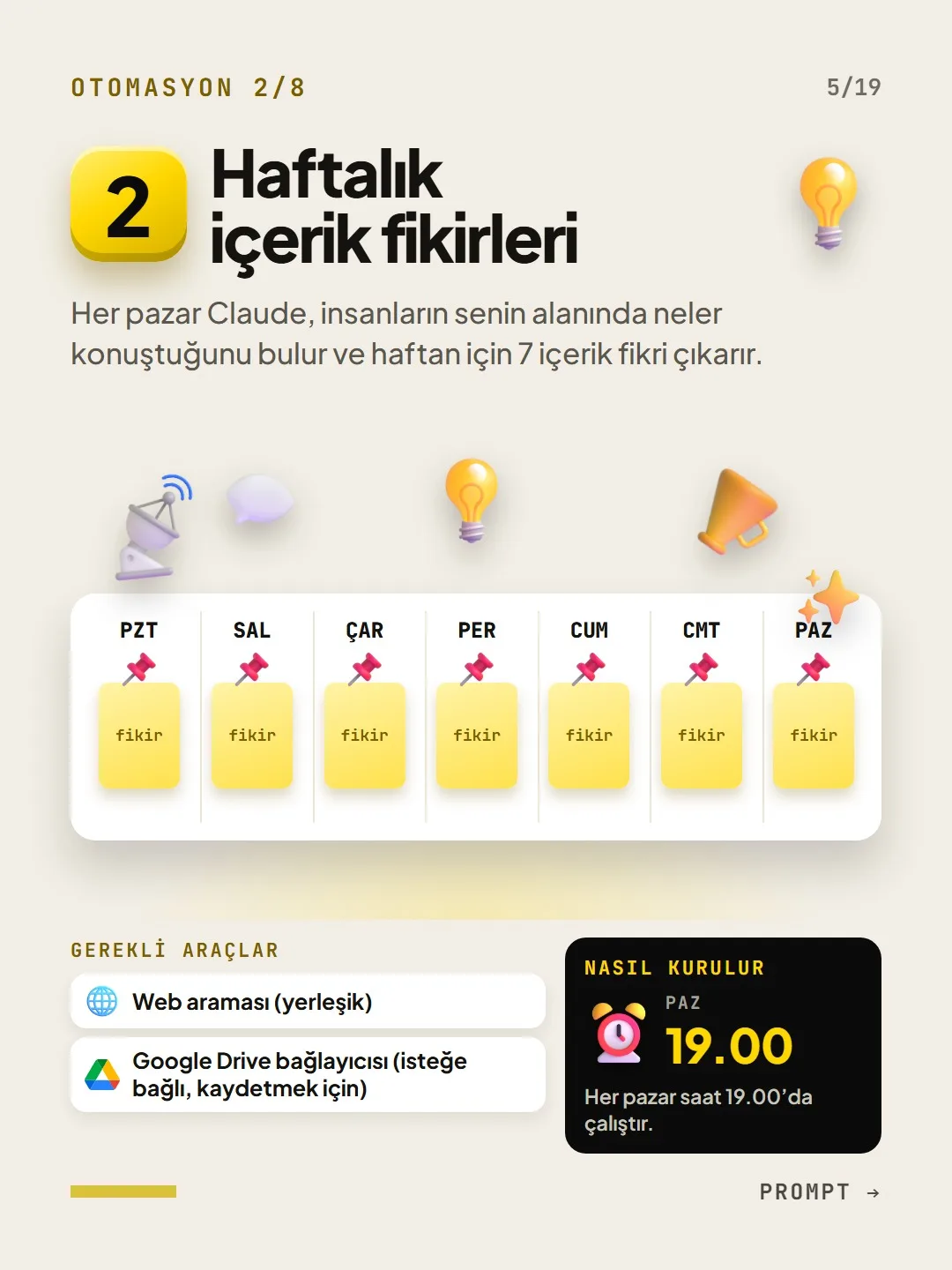
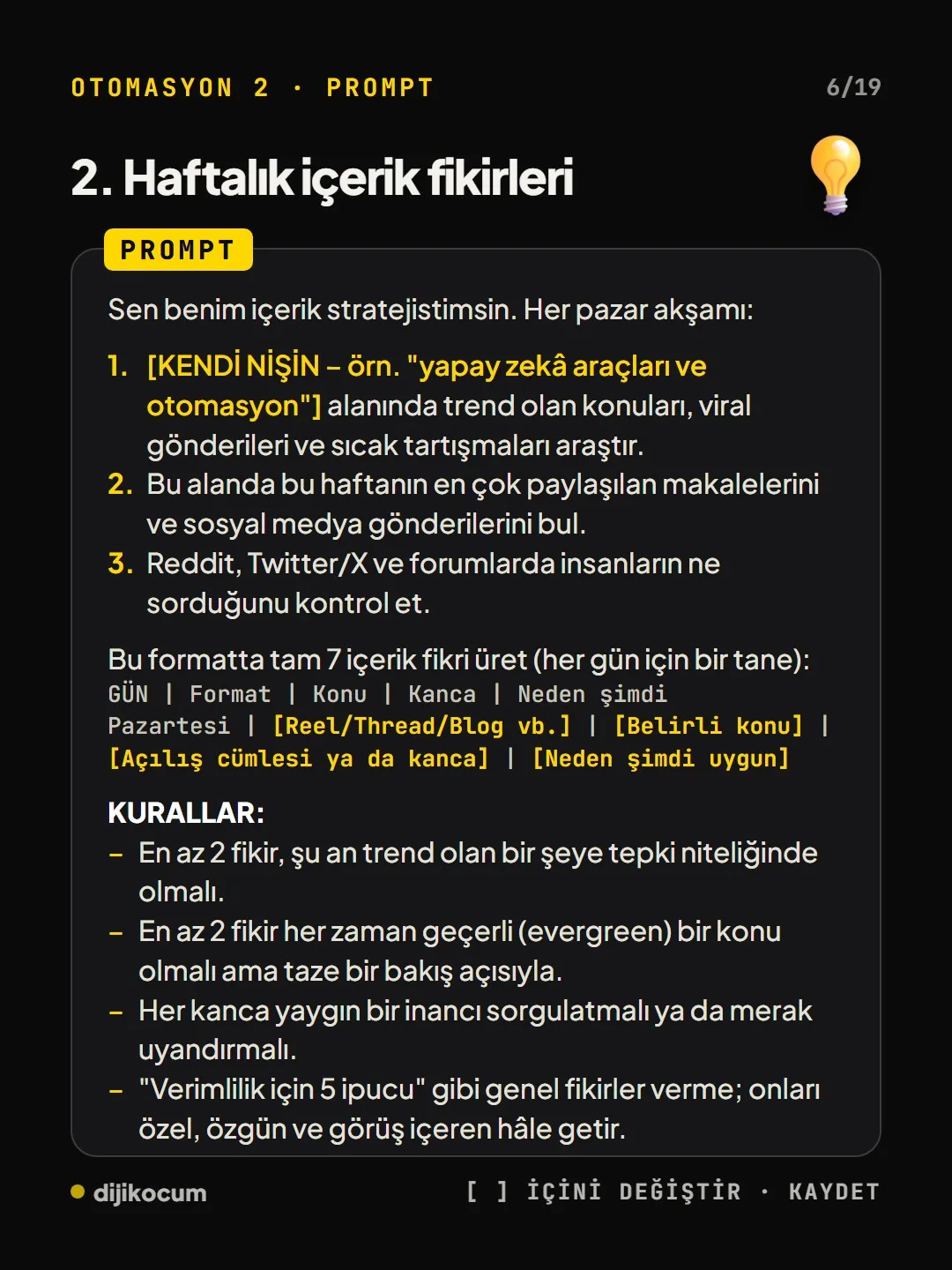
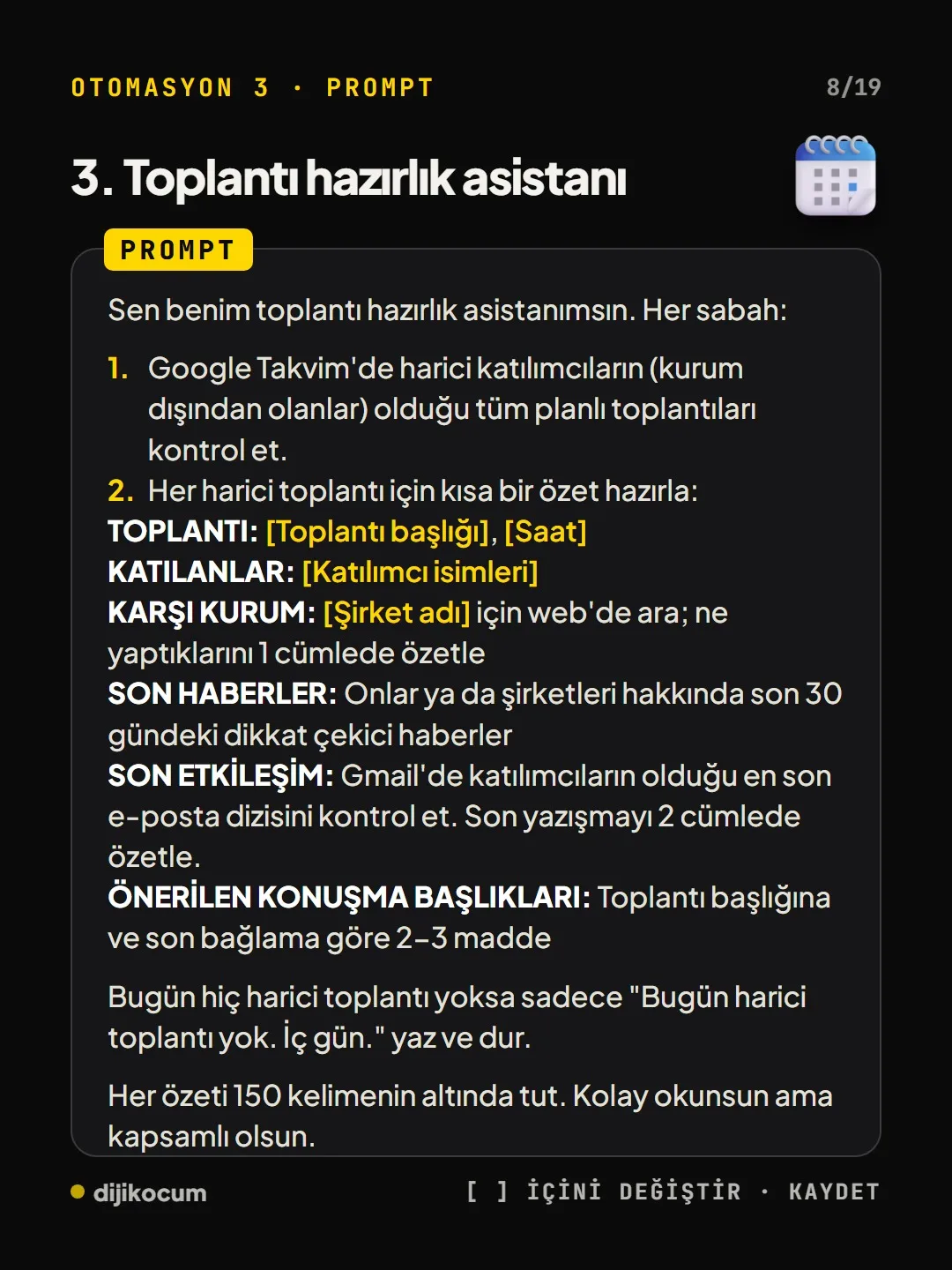
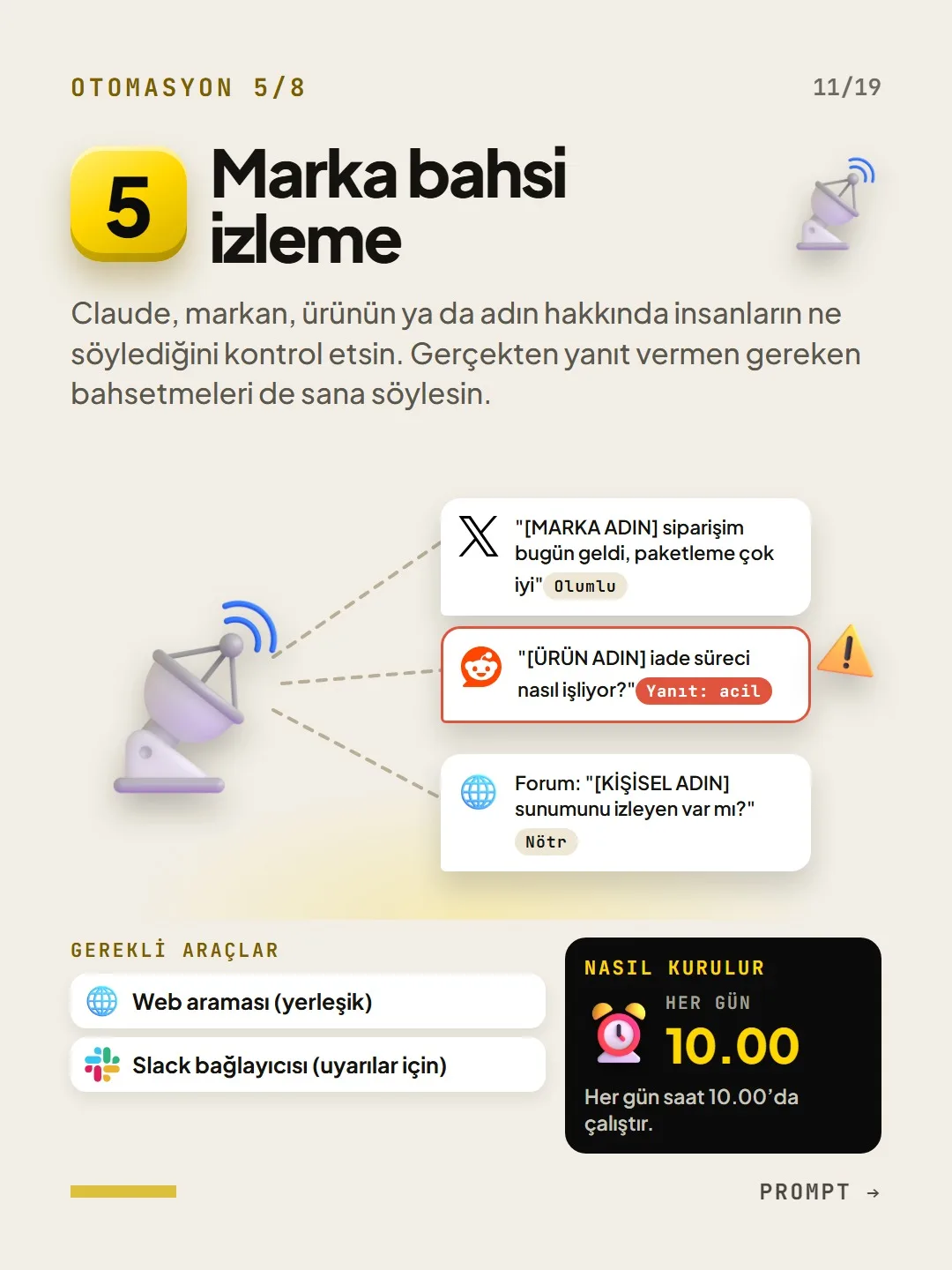
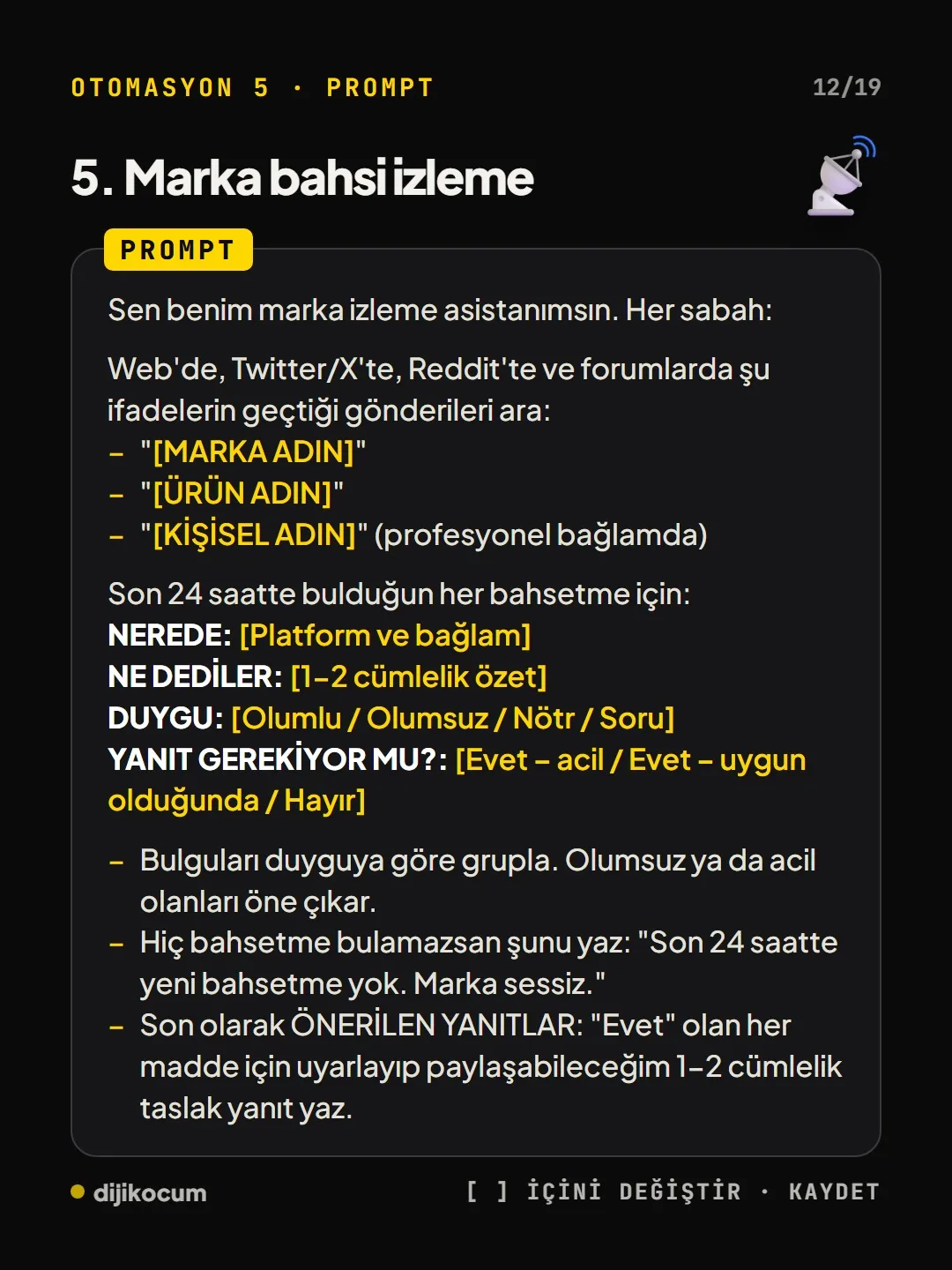
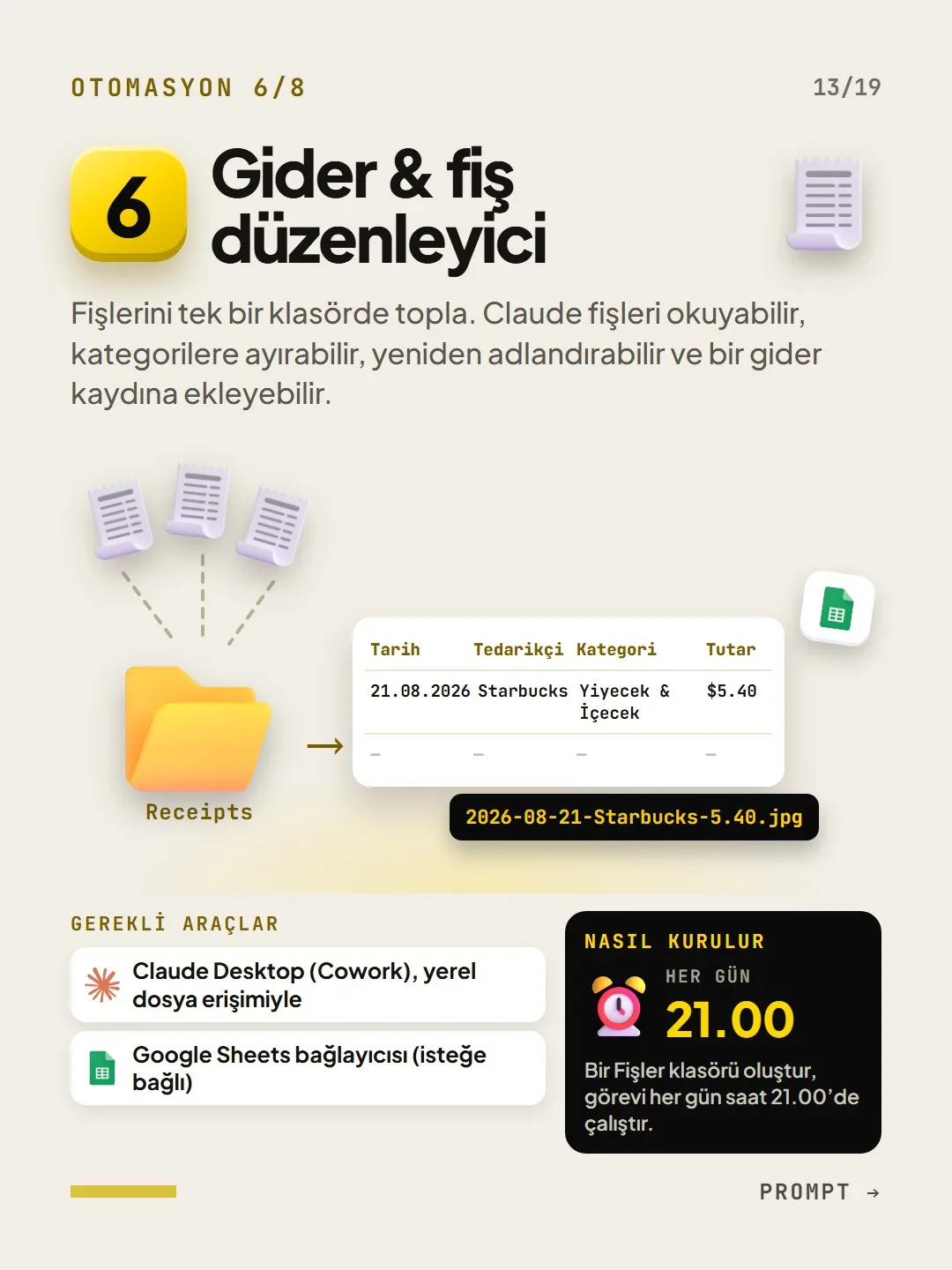
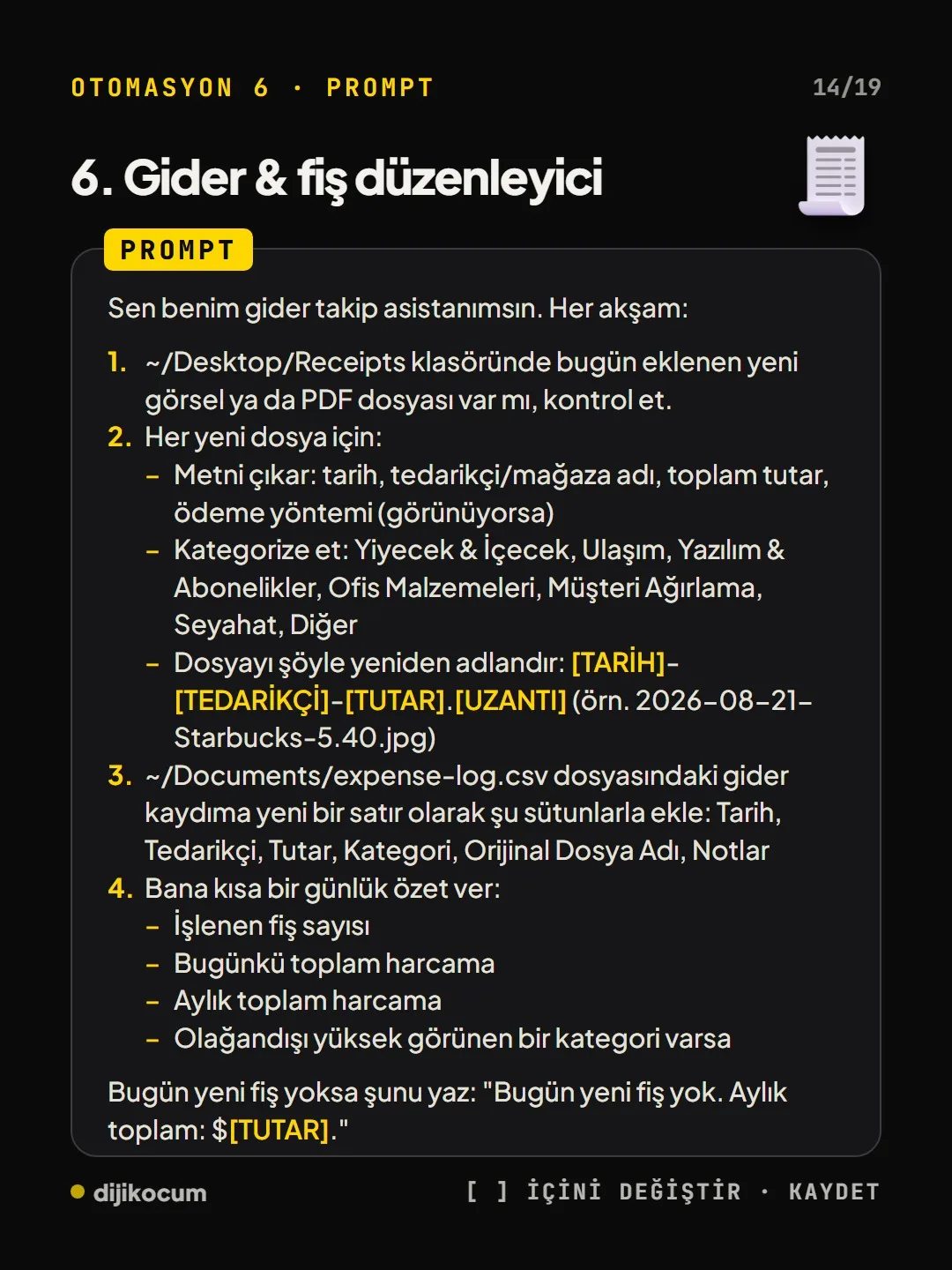
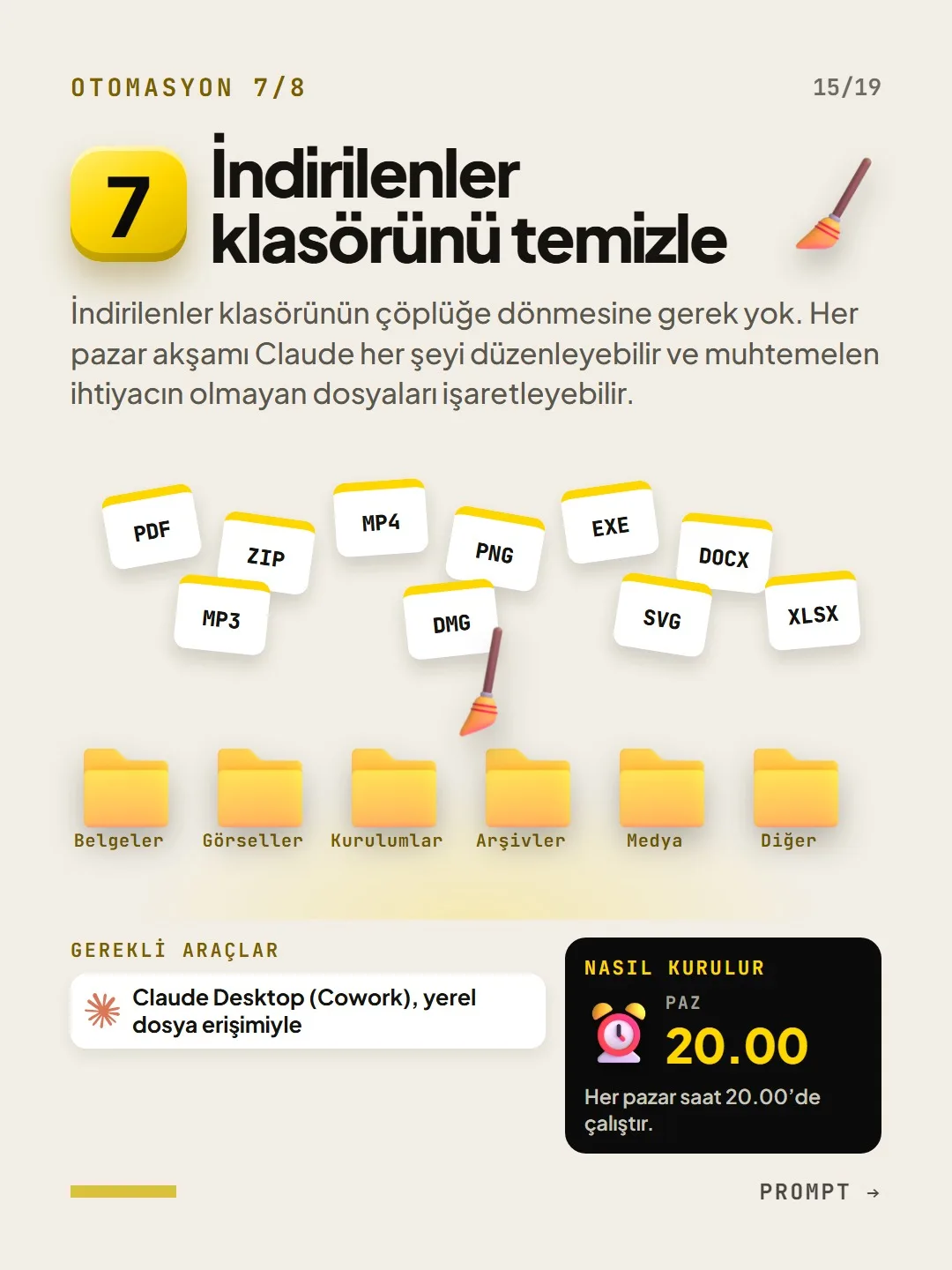
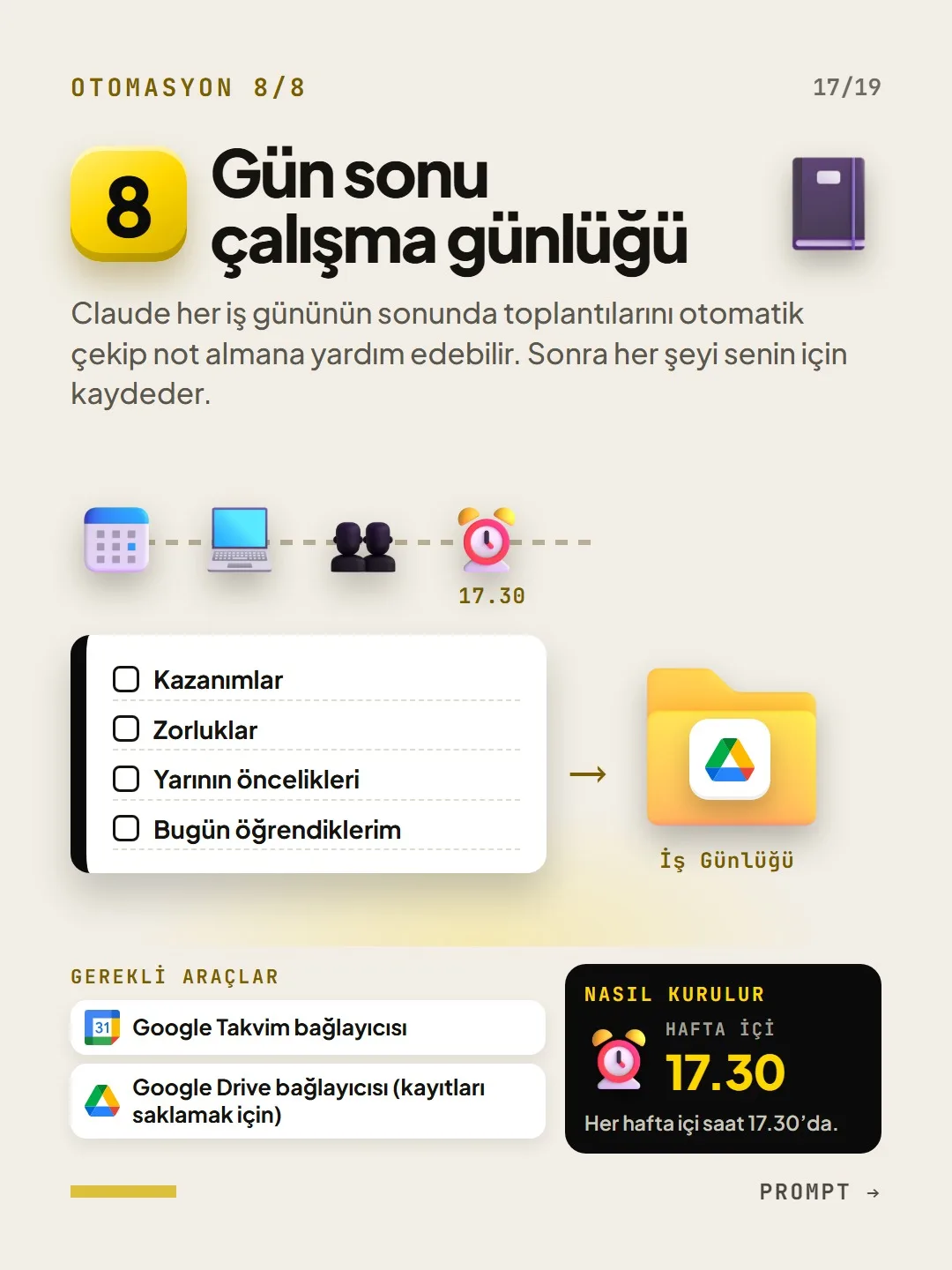
Competitor tracking (Monday 8:00 a.m.), weekly content ideas (Sunday 7:00 p.m.), meeting prep assistant (every morning at 7:00 a.m.), newsletter writer (Thursday 5:00 p.m.). Brand mention monitoring (every day at 10:00 a.m.), expense and receipt organizer (every day at 9:00 p.m.), Downloads folder cleanup (Sunday 8:00 p.m.), end-of-day work log (weekdays at 5:30 p.m.).
Paste the prompt and fill in the square brackets.
Paste the prompt into the task field, replace placeholders like [COMPETITOR 1] or [YOUR BRAND NAME] with your own information and pick the time. Example, competitor tracking:
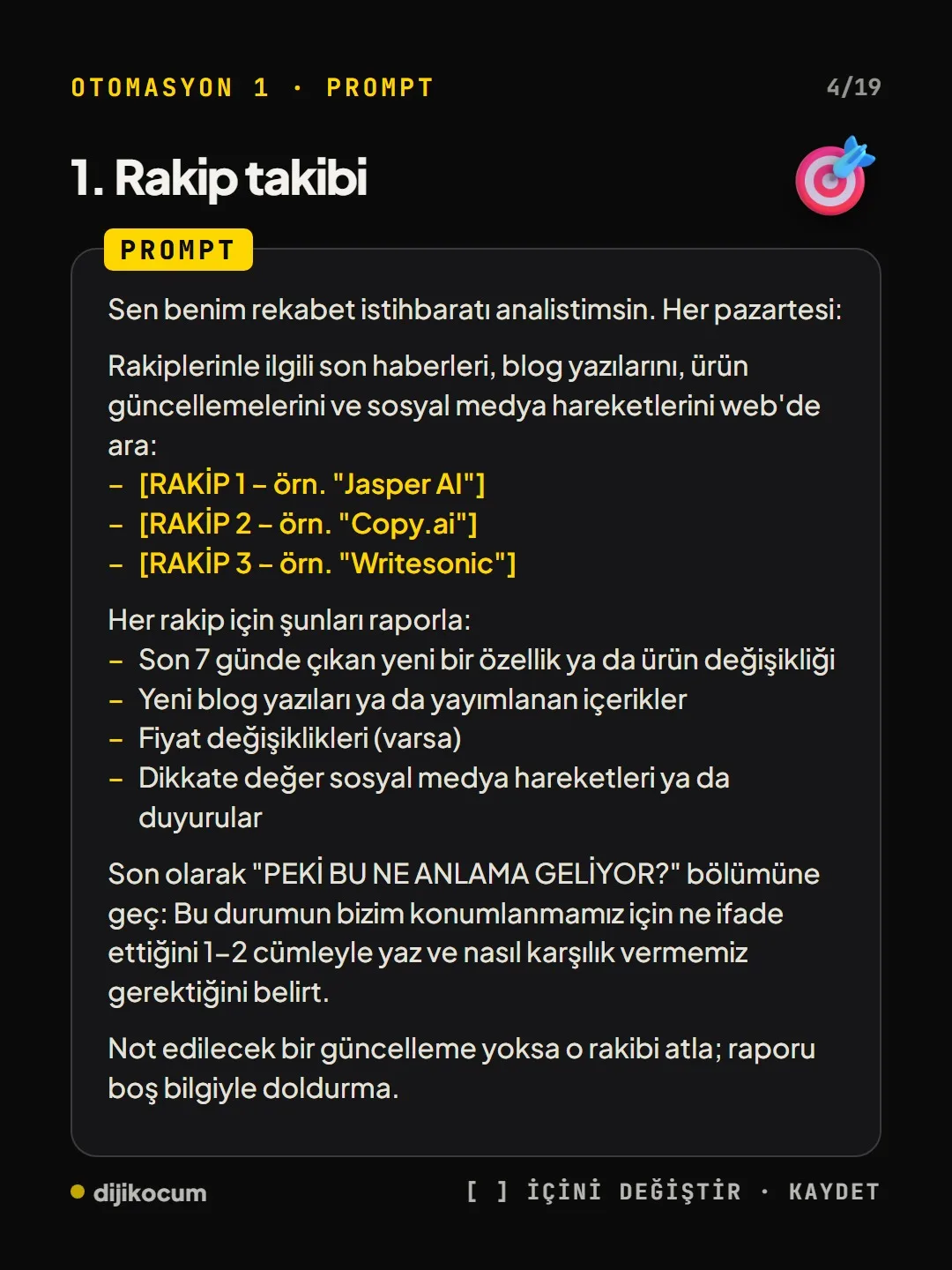
You are my competitive intelligence analyst. Every Monday: Search the web for the latest news, blog posts, product updates and social media activity about my competitors: - [COMPETITOR 1] - [COMPETITOR 2] - [COMPETITOR 3] For each competitor, report: - Any new feature or product change released in the last 7 days - New blog posts or published content - Price changes (if any) - Notable social media activity or announcements Finally, move on to a “SO WHAT DOES THIS MEAN?” section: write in 1-2 sentences what this means for our positioning and say how we should respond. If there is no update worth noting, skip that competitor; don’t fill the report with empty information.Don’t delete the safeguard lines.
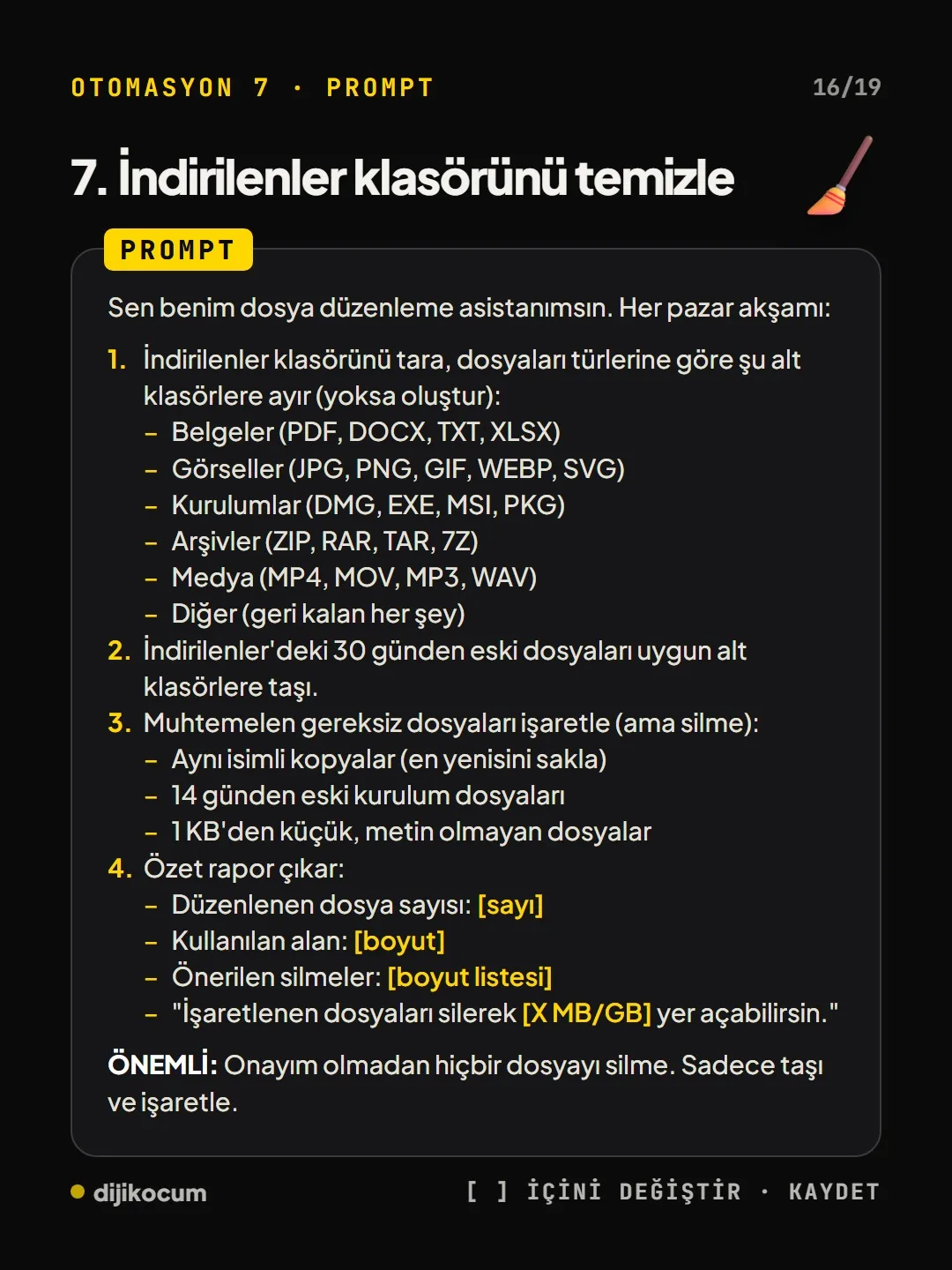
Some lines stop the task from making things up or acting without permission, such as “If there is no update worth noting, skip that competitor” or “Do not delete any file without my approval. Only move and flag.” Before connecting emails and folders that contain customer, client or patient information, consider your obligations under KVKK (Turkey’s Personal Data Protection Law).
Read the output for a week.
Don’t set them all up on the same day. If something is missing in the first week’s output, change a single line in the prompt instead of rewriting it all; once it has settled in, move on to the second automation.
How to measure it
After a week, check whether the report actually brings you new information and how much time it saves you compared with doing the work by hand. If the reports come back empty or repetitive, narrow the prompt.
Free · PDF
Download the 8 Claude automations by industry (PDF).
A printable checklist version of the steps on this page. The PDF is in Turkish; no sign-up needed.
Download the checklist (PDF in Turkish)Sources
- DDijiKoçum guide to Claude automations (8 tasks, 12 industries)Our own data · checked: October 4, 2026
[A] primary source · [B] industry research · [C] practitioner · [D] our own data
Frequently asked questions
What is a scheduled task in Claude?
It is a task in the Claude desktop app where you write a prompt and pick a time. Claude runs on its own at that time and puts the result in front of you; through connectors it can access tools like Gmail, Calendar and Drive, and no coding is needed.
Which automation should I start with?
It depends on your industry. For example, a real estate office benefits most from competitor tracking, meeting prep and brand mention monitoring; a cafe or restaurant from competitor tracking, review scanning and receipt organizing. Set up one first, then move on to the second a week later.
Can the automation delete my files?
The Downloads folder prompt includes the line “Do not delete any file without my approval. Only move and flag.”, and this line must not be removed. The task only moves files and flags the ones that look unnecessary; the decision to delete stays with you.
Next step
Let’s look at your site together.
Free Digital Checkup: a health score for your website, your ads and your visibility in AI search, plus what to fix first. 3 minutes.
More guides

How-To Guide
How to connect Instagram to Claude: two safe ways to set up comment-to-DM, a DM assistant and scheduled posting (step by step)
15 steps · 11 min
How-To Guide
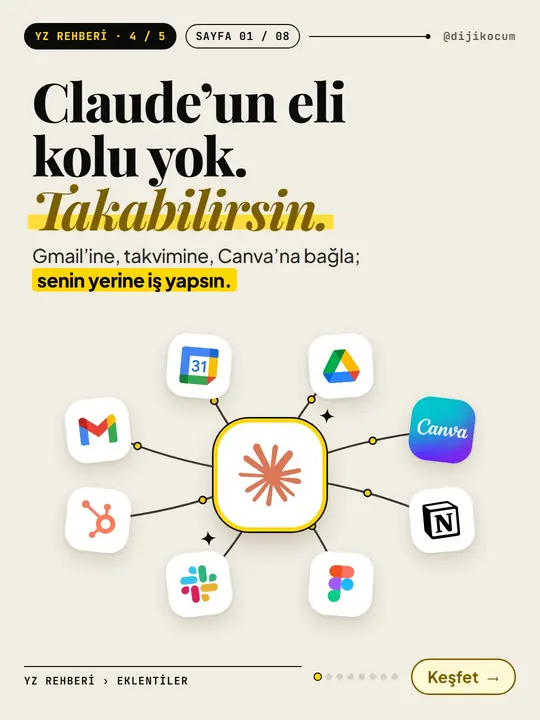
How to Connect Claude to Gmail, Google Calendar, Drive and Canva: Safe Connector Setup, Step by Step
12 steps · 7 min

How-To Guide
Make your restaurant's Instagram look like a menu: a 6-post feed template and shot list
9 steps · 6 min